How to Find Your Public IP Address, ISP, ASN, and Location in One Check
For users troubleshooting connections: a one-step guide to find your public IP address, ISP, ASN, and approximate location and verify VPNs.
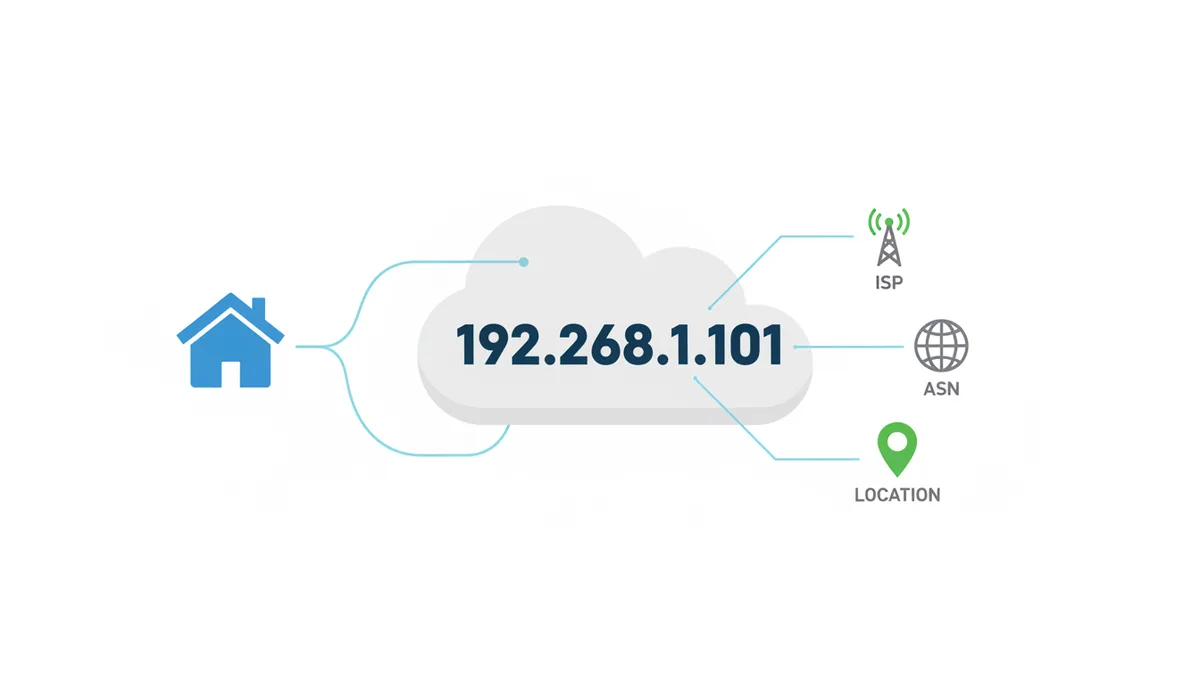
Why Do You Need to Know Your Public IP, ISP, and Location?
Last time your internet went down and you called your provider's support line, the first thing they asked was probably "what's your IP address?" Not your computer's local address — the public one, the one your router uses to talk to the rest of the internet. If you couldn't answer, the call stalled until you figured it out.
That single number is the start of almost every network troubleshooting conversation, and it's rarely the only piece you need. Tech support also wants your ISP (because they need to know who owns the block you're on), your ASN (because that's how they trace routing problems across the backbone), and often a rough location (because some outages are regional). You can dig these out one at a time, or you can run a single check that returns all of them at once.
The four pieces — public IP, ISP, ASN, location — act together as a kind of fingerprint for your connection at a specific moment. Your public IP is the address. Your ISP is the company that hands it to you. Your ASN is the routing group that IP belongs to on the global BGP table. Your location is a best-guess of where that block is being used. None of this identifies you personally — not your name, not your street address, not your browsing history. It identifies your network's edge on the public internet, which is a different and much narrower thing.
You'll want this fingerprint in a handful of real situations:
- Contacting tech support — they'll ask for your IP to check if your line is actually down or if a routing issue is upstream of you.
- Verifying a VPN — you turned on a VPN to appear from another country; a one-click lookup tells you whether it's actually working or whether you're leaking your real address.
- Region-locked content — a streaming service says you're in the wrong country; you check your IP to see what country the rest of the internet thinks you're in.
- Security alerts — you get a login notification from a device you don't recognize, and the alert includes an IP. Looking it up tells you roughly where that login came from and what ISP it was on.
- Email deliverability — your messages are bouncing. Your IP might be on a blacklist. You need the IP first to check.
None of these require a deep networking background. They require the right number, an honest read of what it means, and an understanding of where the accuracy drops off. The accuracy drops off sooner than most people assume, and that's where the interesting parts start.
How Does an IP Lookup Tool Discover Your Network Details?
When you load a lookup page, your browser makes a normal HTTP request to that site's server. That request, like every request your browser ever makes, carries the return address it expects replies to come back to. That return address is your public IP — the one your ISP assigned to your router, the one every website you visit can see. The lookup tool isn't doing anything clever to find it; the number is right there in the connection metadata, the same way a return address is written on the envelope of every letter you mail.
Your device itself probably isn't using that public IP directly. Behind your router, your laptop and phone are on private addresses like 192.168.1.10 or 10.0.0.4. Those ranges aren't routable on the public internet — they're for your local network only. Your router runs Network Address Translation (NAT), rewriting outgoing packets so they all appear to come from its single public IP, and rewriting the replies back to the correct private device when they return. The lookup server never sees your private address and doesn't care about it.
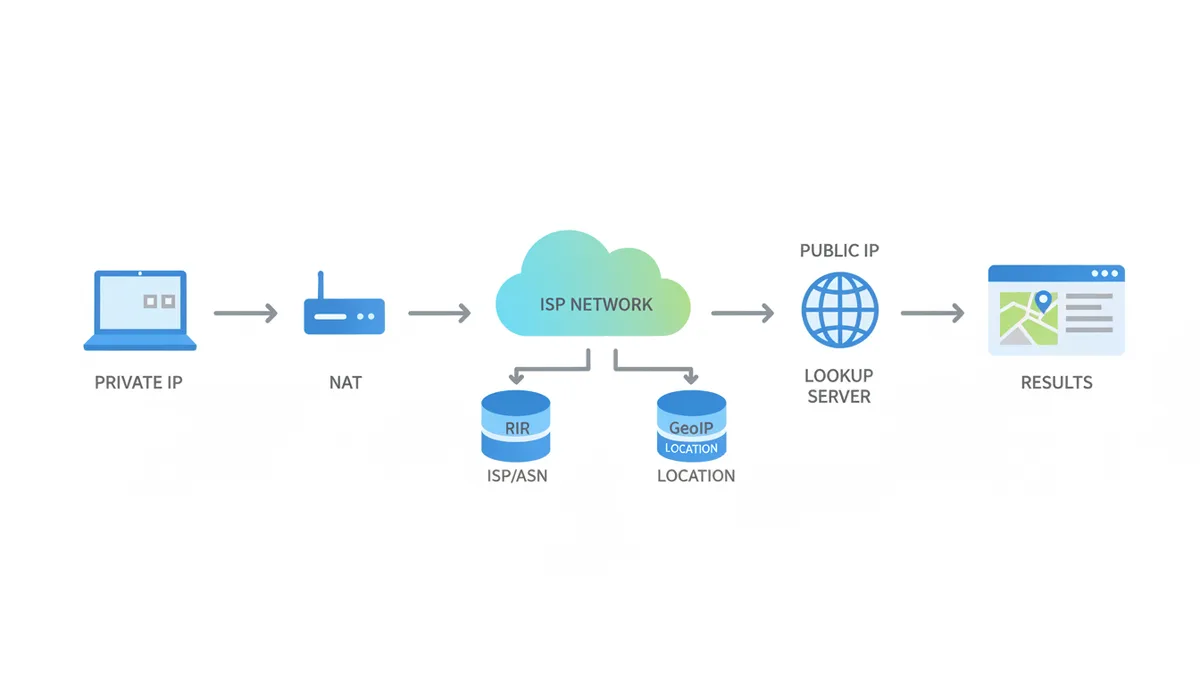
Once the lookup server has your public IP, it makes two separate kinds of queries to fill in the rest of the panel, and these two queries pull from different sources with different guarantees.
The first is a query against a Regional Internet Registry (RIR). There are five RIRs, each responsible for a chunk of the world: ARIN for North America, RIPE NCC for Europe, the Middle East, and parts of Central Asia, APNIC for Asia-Pacific, LACNIC for Latin America and the Caribbean, and AFRINIC for Africa. ISPs register the blocks of addresses they've been allocated with their RIR, and that registration record contains the organization name (the ISP), the ASN that routes the block, and the country of registration. This data is authoritative — it's literally the record of who has the right to announce that block. When the lookup panel shows "ISP: OVH SAS, ASN: AS16276," that's coming from the RIR, and it's as accurate as it gets.
The second kind of query is geolocation, and here's where things get looser. RIRs don't keep track of where each IP is used, only where it's registered. For geolocation, the lookup tool turns to third-party GeoIP databases maintained by companies like MaxMind, IPinfo, and others. These databases are built by stitching together a lot of imperfect signals: where the ISP says its gateways are, where users running speed tests report being, which time zone shows up in HTTP headers from that IP range, and so on. The result is an estimate — usually city-level, sometimes wrong, never a GPS coordinate.
The honest summary: the IP itself and the ISP/ASN are hard facts pulled from authoritative sources. The location is a probabilistic guess from a commercial database. When the tool tells you "Warsaw, PL," it's telling you what the GeoIP vendor believes about that block right now, not what your router's GPS would say.
How Can You Find Your IP, ISP, ASN, and Location in One Step?
The fastest path is one page. Load WhatIsMyMyIP.com in any browser on the device whose connection you want to check. The homepage runs the lookup the moment the page loads — there's no button to click and no form to fill in. The result appears in two panels, one above the other.
The top panel shows your public IP address in large type (for example, 57.128.195.96, which is what the server saw when this article was prepared). Below that, the panel breaks the result into two groups.
Location Details lists Country, Region, City, Timezone, and Coordinates. The country and region are usually right. The city is right more often than not but is the first field to go wrong, especially on mobile networks or when your ISP routes traffic through a different city than the one you're in. The coordinates are the centroid of whatever area the GeoIP database assigned — useful as a rough landmark, useless for anything that requires precision.
ISP Details lists Organization and ASN. The Organization field is pulled from the RIR record and is the legal name of the entity that registered the block. The ASN is the Autonomous System Number that announces the block on the global routing table, prefixed with "AS" so you can tell it apart from a regular IP. If you're on a home connection, this is usually your ISP's parent company or the wholesale provider they buy transit from. If you're on a cloud or hosting provider, it'll be the provider's name (OVH, Hetzner, Amazon, etc.).
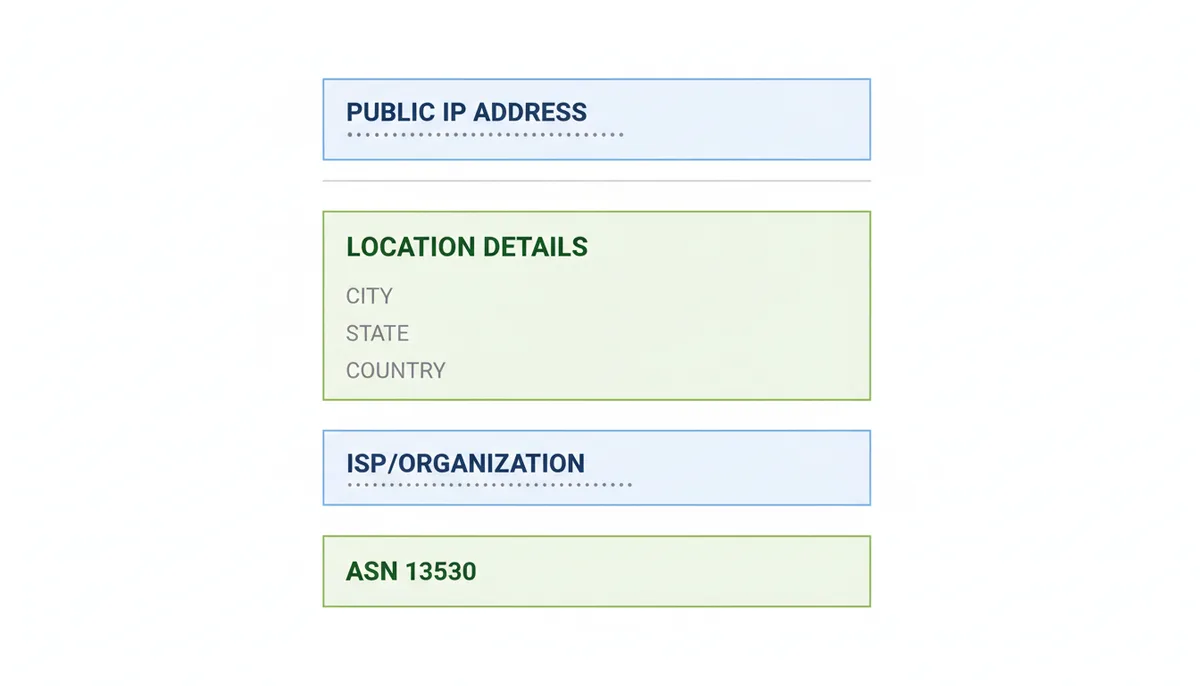
That's the whole step. The panel is laid out so you can read it back to a support technician in one breath: "My IP is X, ISP is Y, ASN is AS-Z, location shows as city, country." If you're verifying a VPN, you compare the IP and country shown here to what you expected your VPN to provide — if they match, the VPN is routing correctly; if they don't, something is leaking.
If you need to share the result, screenshot the panel. Don't copy the IP into a separate email and retype the rest from memory — the ASN and the exact organization name are easy to get wrong, and the support person on the other end needs them exactly.
What Do Your IP Lookup Results Actually Mean?
The Public IP Address
Your public IP is the single address your entire home network presents to the internet. Every website you visit, every service you connect to, sees that address as the source of your traffic. Without it, replies couldn't get back to you — it's the return address on every packet you send.
Public IPs come in two flavors. Dynamic IPs are assigned from a pool and can change whenever your ISP feels like it — after a router reboot, after a lease expires, or because the ISP reorganizes its addressing. Most residential connections use dynamic IPs. Static IPs are fixed and don't change; businesses pay extra for them because they're running servers, VPNs, or other services that need to be reachable at a known address.
The version matters too. IPv4 addresses look like 203.0.113.45 — four numbers between 0 and 255 separated by dots. The IPv4 pool is exhausted, so ISPs stretch it with Carrier-Grade NAT (more on that later). IPv6 addresses look like 2001:db8:1::a — much longer, written in hex, and effectively unlimited. Most lookup tools show both if your connection supports both, and they're treated as separate addresses with separate geolocation records.
Don't confuse the public IP with the private IP in your computer's network settings. The address your laptop reports (often 192.168.x.x or 10.x.x.x) is your private IP — it only matters inside your house, the router translates it out to your public IP before any packet leaves your network. Your private IP tells a support technician nothing about your connection to the wider internet.
The ISP and ASN
The ISP field names the organization that registered the IP block with their RIR. That's the legal owner. The ASN is the routing identity — when packets are flowing to or from your IP, the global BGP (Border Gateway Protocol) system routes them based on which ASN announces your block. Every ISP and large network operator has at least one ASN, and large ones have dozens.
The ASN matters for troubleshooting because routing problems are ASN problems. If a website is unreachable from your connection but fine from a friend's, the difference is often in the path between your ASN and theirs. A traceroute shows that path hop by hop, and each hop is labeled with an ASN. Knowing your own ASN lets you read that traceroute and figure out where the break is.
The organization name shown isn't always the brand on your bill. ISPs get bought, rebranded, and resold. You might pay a company called "Brightspeed" and see "Level 3" or "CenturyLink" in the lookup result, because Brightspeed leases infrastructure from the larger provider. This isn't a mistake — it's the RIR record reflecting who actually owns the block.
Geolocation
The city, region, and country shown in a lookup are estimates, and you should treat them as estimates. The GeoIP vendor has a database that maps IP blocks to locations, and the mapping comes from a mix of ISP self-reporting, observed traffic patterns, and inference from nearby blocks. The accuracy varies by country, by ISP, and by how recently the vendor refreshed their data.
In practice, the country is usually correct, the region is usually correct, and the city is right somewhere between 70% and 90% of the time depending on which study you read and which country you're in. The coordinates are the center point of whatever polygon the vendor assigned — not your actual location, not the location of your router, and definitely not your house.
This means IP geolocation is useful for things like content licensing ("can this user watch this show in this country?"), fraud detection ("is this login coming from a country this user has ever been in?"), and ad targeting ("serve a Spanish-language ad to a Spanish IP"). It's not useful for anything that requires a precise physical location. If a service claims to know your exact street from your IP, they're guessing, and they're guessing wrong.
What if Your IP Location or ISP Information Seems Wrong?
The most common reason a lookup shows the wrong city isn't a bug in the tool — it's that your traffic is being routed through a different city than the one you're in. Your ISP's gateway to the wider internet isn't necessarily in your town. If you live in a suburb of Chicago but your ISP's nearest major interconnect is in Indianapolis, your IP block may be registered as Indianapolis, and that's what the GeoIP database reports. Nothing is broken; that's just where your ISP's infrastructure lives.
The ISP name being unfamiliar has a similar explanation. The name that shows up is whoever registered the block, which is often a parent company, a holding company, or a wholesale transit provider. Your monthly bill might say "Xfinity" and the lookup might say "Comcast Cable Communications" — same company, different name on different paperwork. Or your ISP might lease IPs from a larger provider and you see that provider's name. None of this affects your service; it just means the RIR record reflects corporate structure, not consumer branding.
Dynamic IPs add another wrinkle. If your IP changes between checks, the new IP might come from a block registered to a different location or even a different part of your ISP's network. A lookup that showed Chicago yesterday might show Milwaukee today if the lease rotated. This is normal residential behavior, not a sign of tampering.
False-positive proxy detection is the one that worries people. Some lookup tools flag certain ISPs (especially cellular carriers and hosting providers) as proxies or VPNs even when the user isn't using one. If you see a "proxy detected" warning and you're on a normal home connection, the tool is probably overreacting to your ISP being in a database of hosting providers or shared with business VPNs.
| Symptom You See | Likely Technical Cause | What It Means for You |
|---|---|---|
| My location is the wrong city or state | Traffic exits through an ISP gateway in a different metro area than where you live | Normal. Geolocation reflects where the IP block is registered or where the ISP's equipment sits, not where your device is physically located. |
| The ISP name is a company I don't recognize | The block is registered to a parent company, holding company, or wholesale transit provider your ISP leases from | Normal. The RIR record reflects corporate ownership, not consumer branding. Check whether the listed company owns or supplies your actual ISP. |
| My IP address is different from yesterday | Your ISP assigns dynamic IPs from a pool, and the lease rotated (often after a router reboot or expiry) | Normal for residential service. If you need a stable IP, ask your ISP about static IP service, which usually costs extra. |
| The tool says I'm using a proxy but I'm not | The tool's proxy database flags your ISP or ASN as hosting VPN/proxy infrastructure, or you're on a cellular network using CGNAT | Usually a false positive. If you're on a home connection, ignore it. If you're on mobile data, the shared NAT pool is the likely trigger. |
How Do VPNs, Proxies, and Mobile Networks Change Your Public IP?
A VPN changes your public IP by inserting an intermediary between you and the sites you visit. Your traffic flows encrypted from your device to the VPN provider's server, and that server makes the actual requests to websites on your behalf. Every lookup tool, every website, every service sees the VPN server's IP, ISP, ASN, and location — not yours. This is why a lookup is the fastest way to verify a VPN: connect to the VPN, load the lookup page, and check whether the IP and country match what your VPN provider promised. If the IP is still your home ISP's, the VPN isn't routing traffic correctly. If the country is right but the ISP is your home ISP, you might be hitting a split-tunneling bug where some traffic goes through the VPN and some doesn't.
A proxy does the same thing at a different layer. A web proxy intercepts HTTP/HTTPS traffic specifically; a SOCKS proxy handles arbitrary TCP. The lookup result is the same — the proxy's IP shows up instead of yours. Proxies are generally less private than VPNs because they don't encrypt traffic by default and often leak identifying headers (like X-Forwarded-For) that reveal your real IP to anyone who looks at them. Modern lookup tools can detect these headers.
Tor goes further. Tor bounces your traffic through three relays — an entry guard, a middle relay, and an exit node — and the exit node's IP is what the wider internet sees. The exit node changes frequently, sometimes with every request, which means a lookup done over Tor can show a different country each time you refresh. This is by design; it's what makes Tor hard to trace. It's also what makes Tor traffic easy to identify: many sites flag IPs known to be Tor exits.
Mobile networks present a different and often confusing case. Cellular carriers use Carrier-Grade NAT (CGNAT) to share a single public IP among many subscribers — sometimes thousands. Your phone doesn't get its own public IP; it gets a private IP inside the carrier's network, and the carrier's gateway translates all that traffic out through a pool of shared public IPs. The lookup tool sees one of those pool IPs, which is shared with other customers you'll never meet.
The practical consequence is that CGNAT makes your IP much less specific to you. If you're trying to run a server at home or host a game for friends, CGNAT blocks incoming connections — there's no public address that points specifically to your router. You can work around it with a VPN that gives you a dedicated exit, or with port forwarding through a relay service, but the carrier won't hand you a real public IP just for asking. The geolocation is also weaker: a shared pool IP gets reported at whatever metro area the carrier's CGNAT gateway sits in, which may be nowhere near you.
What Distinguishes a Comprehensive IP Lookup Service?
Any site can echo your public IP — it's right there in the HTTP request, no special skill required. What separates a basic lookup from a tool worth bookmarking is what it does after that, and how current its data is.
Data freshness is the first thing. RIR records change: blocks get reassigned, ASNs get transferred between organizations, mergers rename entries. GeoIP databases update continuously as ISPs report new infrastructure and as vendors observe traffic patterns. A lookup tool that hasn't refreshed its databases in months will show stale ISP names and wrong cities. You can usually tell by looking up a major cloud provider's IP — if the tool still calls it by an old company name or shows the wrong ASN, the data is old.
Beyond freshness, a serious lookup service layers on diagnostics that turn a single IP into a fuller picture:
- Reverse DNS (rDNS) — the hostname associated with the IP, if any. ISPs often assign descriptive names like
cpe-72-183-12-45.res.rr.comthat tell you the ISP and sometimes the region. Reverse DNS is also useful for spotting hosting infrastructure: a real residential IP rarely has a reverse DNS entry; a cloud server almost always does. - IP blacklist checks — real-time queries against spam and abuse databases like Spamhaus, Barracuda, and SORBS. If your IP is listed, your email will bounce and some sites will block you. Knowing you're listed is the first step to getting delisted.
- VPN/proxy/Tor detection — the tool checks whether the IP belongs to a known VPN provider, datacenter, or Tor exit. Useful for two reasons: if you're supposed to be on a VPN and the tool doesn't flag it, the VPN isn't routing correctly; if you're not on a VPN and the tool flags it anyway, you've got a false positive to ignore or a network configuration problem to chase.
- WHOIS lookup — the raw RIR record for the IP, showing the registration date, the network range, and the contact information for abuse reports. Useful if you're investigating where a suspicious login came from.
- API access — for developers who need to automate checks (e.g., flagging logins from new countries). Most free tools don't offer this; the ones that do usually rate-limit it.
The lookup tool built into WhatIsMyMyIP.com covers these. The homepage shows your IP, ISP, ASN, and location immediately, and the Tools section branches into blacklist checks, WHOIS lookups, proxy/VPN detection, breach checks, and a speed test. For a quick "what does the internet see when I connect" check, the homepage is enough; for a security audit or a deeper troubleshooting session, the rest of the tools matter.
| Feature | Basic Lookup (e.g., searching "what is my IP" on Google) | Advanced Tool (e.g., WhatIsMyMyIP.com) |
|---|---|---|
| Shows Public IP | Yes, your own only | Yes, your own plus any IP you look up |
| Shows Geolocation | Usually city-level only | City, region, country, timezone, coordinates |
| Shows ISP / ASN | Sometimes ISP, rarely ASN | Both, pulled from RIR data |
| Detects VPN / Proxy | No | Yes, with proxy/VPN/Tor detection |
| Checks IP Blacklists | No | Yes, against multiple spam and abuse databases |
| Provides Reverse DNS | No | Yes |
| Offers API Access | No | Yes, on paid plans |
Frequently Asked Questions
Can someone find my exact house address from my IP address?
No. IP geolocation does not have the precision to identify a specific street address. At best, it points to a city, a postal code, or the physical location of the ISP's equipment serving your area. Anyone who claims they can get your street from your IP is either lying or buying data from somewhere else (like a breach database that happened to include your IP at some point).
Is my public IP address permanent?
Usually not. Most residential internet plans use dynamic IP addresses, which the ISP can change at any point — after a router reboot, after a lease expires, or because the ISP reorganized its allocation. If you need a permanent IP, you'd ask your ISP for a static IP, which they typically reserve for business plans and charge extra for.
What's the difference between my public IP and the "IPv4 Address" in my computer's settings?
The address in your computer's network settings is almost certainly a private LAN address — usually starting with 192.168.x.x, 10.x.x.x, or 172.16–31.x.x. It only works inside your home. Your router uses Network Address Translation (NAT) to swap that private address for your public IP before sending traffic out to the internet. The practical takeaway: when tech support asks for your IP, give them the public IP from the lookup page, not the private address from your device settings.
Sources
- Internet Assigned Numbers Authority (IANA) — The official definitions and registries for IP addresses, port numbers, and Autonomous System Numbers.
- American Registry for Internet Numbers (ARIN) — The claim that ISPs and ASNs are tied to IP addresses, as ARIN is the RIR for the US, Canada, and parts of the Caribbean that manages their allocation.
- RIPE Network Coordination Centre (RIPE NCC) — The concept of Regional Internet Registries (RIRs) and how they manage IP resources for specific geographic areas (Europe, the Middle East, and parts of Central Asia).
- Internet Engineering Task Force (IETF) — The technical standards that define how IP addresses, BGP, and other core internet protocols work (e.g., RFC 791 for IPv4, RFC 1930 for ASN allocation guidelines).
- MaxMind — Claims about the nature and accuracy of IP geolocation data, as MaxMind is a leading commercial provider of these databases and documents their limitations.