How to Check Whether a VPN or Proxy Is Changing Your Visible IP Location
Step-by-step checks for VPN and proxy users to verify IP, DNS, and WebRTC protection and learn how to fix leaks.
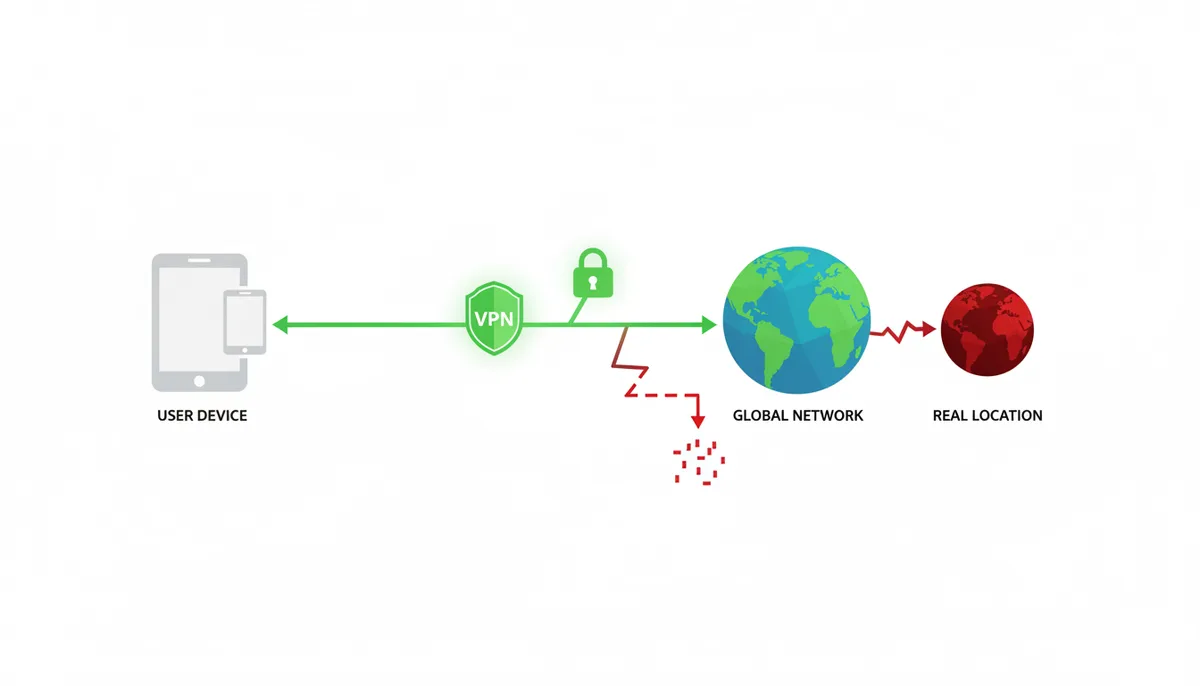
Your VPN icon glows green. You picked a server in another country and paid for a year up front. That should be enough, except it often is not. I have watched people route their traffic through a server in Frankfurt while their browser silently broadcasts their real IP address to every website they visit. The VPN was on. The seal was broken. If you want to know whether your privacy tool is actually working, you need to run three separate checks, not one.
Why Isn't Just Turning On My VPN Enough?
A VPN that claims to be connected can still leak your identity through three separate cracks. Understanding them matters because each one requires a different test and a different fix.
The first is an IP address leak, usually through IPv6. Most home internet providers now assign both an IPv4 address and an IPv6 address. An IPv4 address looks like 203.0.113.45. An IPv6 address is longer, filled with colons, and looks like 2001:0db8:85a3::8a2e:0370:7334. Because IPv6 is newer, some VPN tunnels only handle IPv4 traffic. Your operating system, eager to use the modern protocol, sends IPv6 requests straight out through your normal connection. The website sees your real IPv6 address, your real ISP, and your real region. You get none of the protection you paid for.
The second is a DNS leak. Every time you type a human-readable address like whatismymyip.com, your device asks a Domain Name System server to translate that name into a numeric IP. Normally, your router passes that request to your ISP, which logs it. A VPN is supposed to intercept that request and send it through the encrypted tunnel to a resolver controlled by the VPN provider. When a leak occurs, your device ignores the VPN's instructions and keeps asking your ISP directly. The result is perverse: the website sees your VPN's IP address, but your ISP still gets a clear list of every domain you visited.
The third is a WebRTC leak. Web Real-Time Communication is the browser technology that powers video calls and peer-to-peer file transfers inside websites. To find the fastest connection path, it uses protocols called STUN and TURN that ask your browser to list every network address it has. That includes your VPN's assigned address, your real public IP address, and your local network address, which usually starts with 192.168. Any website can trigger this with a few lines of JavaScript. Your VPN tunnel does not wrap the inside of your browser. If WebRTC is allowed to probe, it will hand over your identity as casually as it hands over the current time.
These leaks create a crucial distinction. Your VPN app might show a successful connection, and a basic IP check might even show a new location, while DNS or WebRTC traffic still slides out unprotected. A green icon means the tunnel is up. It does not mean the tunnel is whole.
How Do I Perform a Basic IP Address Check?
Start with the obvious. Before you hunt for hidden leaks, prove that your public face has actually changed. You need a baseline you can write down.
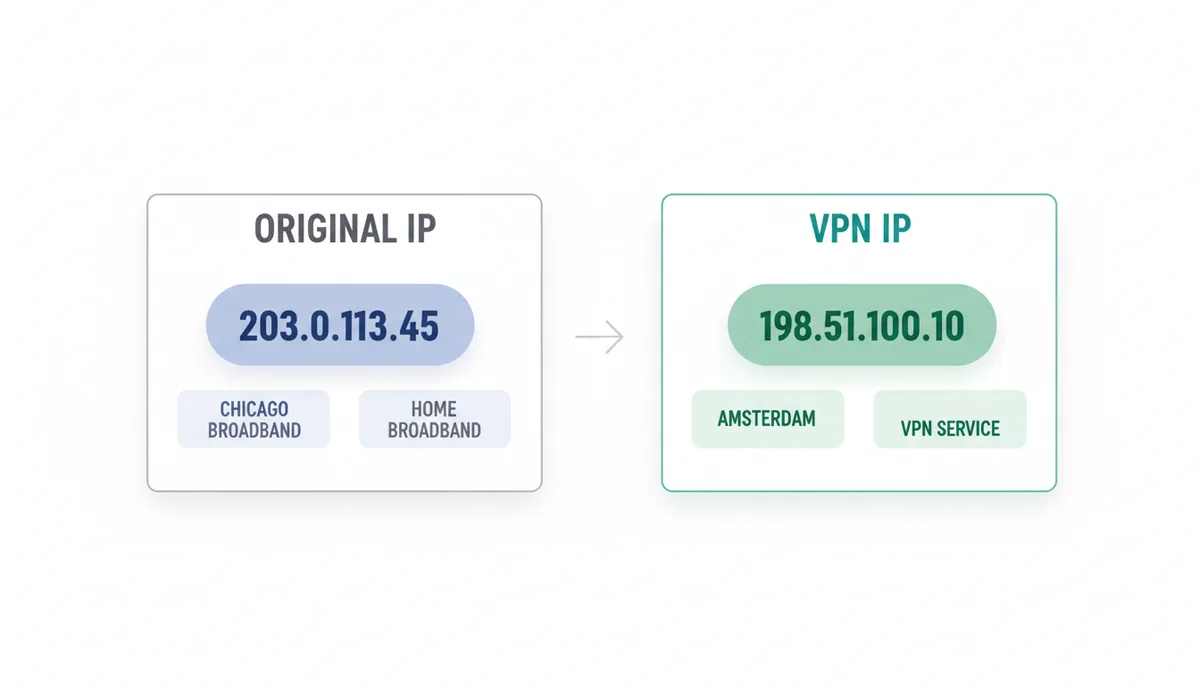
Disconnect your VPN or proxy completely. Open a standard browser window—not a private window, not a separate profile—and visit a lookup tool like whatismymyip.com. Write down three things: the IPv4 address, the reported city, and the Organization or ISP name. If the page shows 203.0.113.45, Chicago, and your home broadband provider, that is your real fingerprint. Do not trust your memory. Numbers blur together after you toggle a VPN.
Now connect your VPN. Choose an exit server far from your actual location. If you are in the United States, select Amsterdam or Tokyo. Distance makes the result unmistakable. Wait a full ten seconds after the client says connected. Some applications display the green light before the routing table has actually shifted. Rushing to the test too early is a common mistake that makes people think their VPN is broken when it is merely slow.
Return to the same IP lookup page and refresh. If your browser caches aggressively, force a hard refresh. The IPv4 address should be completely different. The country and city should match your chosen server region, or at least fall within the same country. The Organization field should no longer list your home ISP. Instead, it will show the hosting provider or data center ASN that your VPN company rents. If you still see your home ISP, your VPN is either disconnected, misconfigured, or routing traffic incorrectly.
This check is your floor, not your ceiling. It proves your main HTTP traffic is wearing a mask. It does not prove your DNS requests, your IPv6 traffic, or your browser's internal signaling are covered. Treat it as the first step of a longer checklist.
What Is a DNS Leak and How Do I Test for It?
Your operating system maintains a ranked list of DNS resolvers. When you type an address, the OS asks the first resolver on the list, waits, then tries the next. Under normal conditions, your home router advertises itself as the resolver, and your router forwards everything to your ISP. A VPN client is supposed to overwrite this list the moment it connects, inserting its own secure resolver at the top and deleting your ISP's entry. A DNS leak means that insertion failed.
This failure usually happens at the network adapter level. The VPN software creates a virtual adapter for the tunnel but does not force all DNS queries to use it. Windows, macOS, and Linux all have slightly different rules for adapter priority, and some VPN protocols handle this override more aggressively than others. If the override fails, your system keeps asking your ISP's resolver for domain names while the actual web data flows through the VPN. The site sees your VPN's IP, but your ISP gets the ledger of where you went.
To test for this, visit a dedicated DNS leak test website. Run the standard test, which typically queries a dozen or more DNS servers to see who answers. The page will display a list of resolvers that handled your requests.
A secure result is clean. You will see one or two servers, both located in the same country as your VPN exit node, with an organization name you do not recognize as your ISP. A leaked result is mixed. You might see your VPN's DNS server listed alongside your ISP's server, or you might see a long list of servers all belonging to your home provider. Even a single real ISP server in that list means your browsing history is exposed. Some tests will even map the ISP server to your geographic region, confirming the leak.
If you see a leak, open your VPN application and look for a toggle labeled DNS leak protection. Enable it. Some clients also let you set a custom DNS address manually. If you do this, use a resolver you trust, but enable the leak protection first; manually setting a DNS without leak protection is like locking a window and leaving the door open. Next, switch protocols. If you are on IKEv2, try OpenVPN UDP. If you are on OpenVPN and still leaking, try WireGuard. WireGuard uses a smaller codebase and often claims the network adapter more aggressively than older protocols, which can prevent routing slips. Retest after every change.
What Is a WebRTC Leak and How Do I Check for One?
WebRTC is a browser engine, not a website plugin. It is built into Chrome, Firefox, Safari, and Edge so that services like Google Meet, Discord, and many telehealth platforms can run video calls without installing extra software. To establish a fast peer-to-peer connection, WebRTC asks the browser to enumerate its network interfaces. It uses STUN—Session Traversal Utilities for NAT—to discover what addresses the machine is reachable on. The browser happily reports the VPN's virtual adapter address, the machine's real public IP address assigned by the ISP, and the local network address such as 192.168.1.42 or 10.0.0.15.
This is not a bug. It is the protocol working as designed. Any website can embed a small piece of JavaScript that triggers a STUN request and reads the response. Your VPN tunnel encrypts the packets you send to websites, but it does not wrap the browser's internal API calls. WebRTC punches right through the tunnel and hands your true address to anyone who asks.
To check for a leak, use a WebRTC leak test page. The page will display the IP addresses your browser has exposed. A safe result shows only the IP address assigned by your VPN. A leaked result shows your real public IP address, your local IP address, or both. If you see an address that matches the one you wrote down during your baseline test, you have a leak.
Fixing it requires changing browser behavior, not VPN settings. The method depends on which browser you use.
| Browser | Primary Method | Secondary Method | Ease of Use |
|---|---|---|---|
| Chrome | Install a browser extension that controls WebRTC | Modify chrome flags | Easy |
| Firefox | Toggle media.peerconnection.enabled in about:config | Install a browser extension | Medium |
| Safari | Use a third-party content blocker extension | Restrict via Develop menu or experimental settings | Hard |
| Edge | Install a browser extension from the Edge Add-ons store | Modify edge flags | Easy |
Retest immediately after applying any fix. Some extensions claim to block WebRTC but only hide local IPs, leaving your public IP fully visible. Trust the test page, not the extension's marketing.
How Do These Tests Differ for VPNs vs. Proxies?
VPNs and proxies are not the same privacy tool. They operate at different levels, protect different scopes of traffic, and fail in different ways. Your testing strategy has to match the technology you are using.
A VPN operates at the operating system level. It creates an encrypted tunnel—usually using AES-256 via OpenVPN, or ChaCha20 via WireGuard—that routes all traffic from your machine to a remote server. Every application, from your browser to your operating system's update service, travels through this tunnel unless you explicitly carve out exceptions using split tunneling. Because the VPN controls the network adapter, it can, in theory, capture DNS requests and IPv6 traffic together with everything else.
An HTTP proxy is a simple intermediary configured inside a single application, almost always a browser. It forwards your web requests to a remote machine, which then fetches the page on your behalf. It does not encrypt traffic between you and the proxy server unless the destination website itself uses HTTPS. It does not touch other applications on your machine. Crucially, it does not capture DNS requests. Your operating system still resolves domain names through your ISP, making DNS leaks nearly guaranteed. WebRTC inside the browser also bypasses HTTP proxy settings entirely, exposing your real IP.
A SOCKS5 proxy is more capable than HTTP. It can handle traffic types beyond simple web pages, including the UDP packets used by some messaging and file-sharing applications. Some clients, including Firefox, offer an option to route DNS queries through the SOCKS5 tunnel. However, this is application-specific and must be enabled manually. If the checkbox is off, DNS leaks out normally. SOCKS5 also provides no encryption between you and the proxy server by default. Anyone monitoring the connection can read the contents. You trade privacy for speed and flexibility.
| Feature | VPN | SOCKS5 Proxy | HTTP Proxy |
|---|---|---|---|
| Encryption | Yes (AES-256, WireGuard, etc.) | No (not encrypted by default) | No (traffic readable unless HTTPS) |
| Traffic Scope | System-wide | Application-specific | Browser or specific app |
| DNS Leak Protection | Built-in (with capable client) | Manual (per-app setting) | None (prone to leak) |
| WebRTC Leak Risk | Low (if browser protection enabled) | High (browser leaks bypass proxy) | High (browser leaks bypass proxy) |
| Anonymity Level | High | Medium | Low |
| Typical Use Case | Secure browsing on untrusted networks | P2P or tasks where speed outweighs encryption | Basic content filtering or light geo-unblocking |
Because proxies only protect the applications you configure, your testing scope shrinks. With a VPN, you test the whole system. With a proxy, you test only the configured browser or app, and you should assume every other application is transmitting your real IP and DNS queries in the clear.
What Should I Do If My Tests Reveal a Leak?
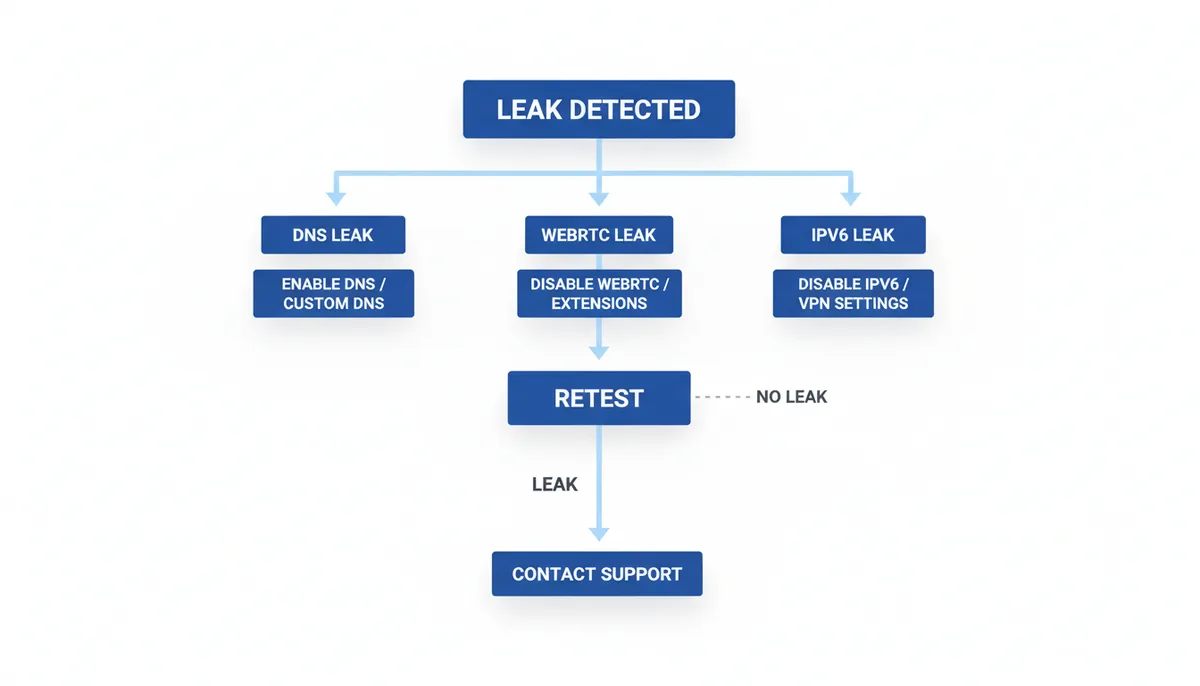
A leak is a diagnosis, not a catastrophe. Fix it by working through the symptoms in order of severity.
If you have a DNS leak, start inside your VPN application. Look for two toggles: DNS leak protection and an option to use a custom DNS server. Enable the leak protection first. If the app lets you enter a specific resolver, you can add one after the protection is active, but toggling the protection is the priority. Next, change protocols. If you are currently using IKEv2, switch to OpenVPN over UDP. If you are on OpenVPN UDP and still leaking, try OpenVPN over TCP on port 443. TCP is harder for restrictive networks to distinguish from standard HTTPS traffic, though it usually carries a speed penalty. If your provider offers WireGuard, test that as well. WireGuard uses a smaller codebase and often claims the network adapter more aggressively than older protocols, which can prevent routing slips. Run the DNS leak test after every protocol change.
If you have an IPv6 leak, the surest fix is to disable IPv6 entirely on your device. On Windows, open Network Connections, right-click your active adapter, choose Properties, and uncheck Internet Protocol Version 6. On macOS, open Network settings, select your adapter, click Advanced, and set Configure IPv6 to Link-local only. On Linux, disable it at the kernel level using sysctl. If you prefer not to alter system settings, check whether your VPN client offers an IPv6 leak protection or IPv6 blocker toggle. A capable client will simply drop all IPv6 packets rather than letting them bypass the tunnel. If your client lacks this toggle, disable IPv6 manually. There is no middle ground.
If you have a WebRTC leak, remember that your VPN app cannot fix this. The browser controls the leak. In Firefox, type about:config into the address bar, search for media.peerconnection.enabled, and set it to false. This disables WebRTC entirely. If you need WebRTC for work video calls, create a separate browser profile without the VPN for those calls, and keep your main profile locked down. In Chromium-based browsers, install an extension that changes the WebRTC IP handling policy to disable non-proxied UDP. Then retest. If the leak persists across extensions, switch browsers for sensitive tasks. Firefox offers the most direct and reliable control over this protocol.
What if nothing works? Contact your VPN provider's support with screenshots and a clear description of which leak you found. If they offer generic advice you already followed, or if their app simply lacks DNS leak protection, protocol selection, or IPv6 blocking, treat that as a verdict. A privacy tool that cannot pass these basic tests is not a privacy tool. Switch to a provider that treats leak prevention as standard, not premium.
Are There Advanced Ways My Location Can Be Exposed?
Passing IP, DNS, and WebRTC tests means your network tunnel is technically sound. It does not grant invisibility. Several tracking methods ignore your IP address entirely, and you should know what a VPN cannot defend against.
Browser fingerprinting is the most pervasive. Every time you load a page, your browser volunteers information: your exact version number, your operating system, your screen resolution, your available fonts, your time zone, your touch support, and how your specific graphics card renders a hidden image called a canvas. Each detail is harmless on its own. Combined, they create a signature that can be unique among millions of users. A website can store this fingerprint today, match it to your fingerprint tomorrow on a completely different IP, and know you are the same person. Your VPN does not stop fingerprinting because the data is announced openly to every site; it never travels through the tunnel in a way the VPN can mask.
Account-based tracking is equally unavoidable. You connect through a VPN, open a private browsing window, and log into your Gmail account. Google now knows that VPN IP belongs to you. If you later browse YouTube from your home IP, Google can correlate the sessions. You authenticated your identity. The VPN was never designed to hide you from services you voluntarily log into.
Finally, physical location signals bypass networks completely. If you are on a phone, your GPS chip reports latitude and longitude to any app with location permission. Google and Apple maintain global maps of Wi-Fi access points. When your phone scans for nearby networks and uploads the list of SSID names, those companies triangulate your position against their database. Cell tower triangulation does the same. A VPN encrypts your internet packets, not your radio emissions. If your weather app knows you are in Cleveland, it is not because your VPN failed; it is because your phone's sensors are more honest than your network settings.
Frequently Asked Questions
If all my tests pass, does that mean I'm 100% anonymous?
No. Passing these tests confirms your IP address is hidden and that your connection is not leaking DNS or WebRTC data. You can still be identified through browser fingerprinting, tracking cookies, or by logging into personal accounts like Google or Facebook while the VPN is active.
Does my browser's 'Incognito' or 'Private' mode hide my IP address?
No. Private browsing modes only prevent your device from saving your history, cookies, and site data locally. Websites, your ISP, and network administrators can still see your real IP address. Incognito is a local cleanup tool, not a mask.
My VPN has a 'kill switch.' Do I still need to run these tests?
Yes. A kill switch blocks internet traffic if the VPN disconnects unexpectedly. It is essential for preventing accidental exposure, but it does not protect against DNS or WebRTC leaks that occur while the VPN is actively connected and stable.
Why does my IP geolocation show the right country but the wrong city?
IP geolocation is an estimate, not a coordinate system. Databases map IP blocks to the address of the company that owns them, which is often a data center on the edge of a metro area. If you chose a server in London but the tool shows Slough, the database is simply reporting the data center's registered location. What matters is that your real city has vanished.
My ISP uses IPv6 but my VPN only gives me an IPv4 address. Is that a problem?
Yes. If your device has an active IPv6 address from your ISP and the VPN tunnel only carries IPv4, sites that support IPv6 will communicate directly with your real address. Disable IPv6 in your operating system or use a VPN client that explicitly blocks IPv6 traffic.
Can I trust the IP lookup tool I'm using for the test?
Cross-reference it. Open two or three independent, well-known IP lookup sites in separate tabs. If they all display the same new IP address, ISP name, and country, you can be confident the result is accurate. If one site disagrees, it may be using a stale database or a cached result.
Sources
- W3C (World Wide Web Consortium) — The official specification for WebRTC, backing the explanation of how WebRTC works and why it can be a source of IP address leaks.
- ARIN (American Registry for Internet Numbers) — The concept of WHOIS lookups for determining the registered owner of an IP address, which is used to verify if an IP belongs to an ISP or a VPN data center.
- Mozilla MDN Web Docs — Authoritative documentation on how WebRTC is implemented in browsers, which is useful for explaining the mechanism of WebRTC leaks and how to mitigate them in Firefox.
- NIST (National Institute of Standards and Technology) — General principles of network security, encryption standards (like AES), and best practices for secure network configurations (e.g., in SP 800-series documents on VPNs).