Public IP vs Private IP: Which Address Network Tools Can See
For home and business users: learn the difference between public and private IPs, how NAT works, and how to find both addresses.
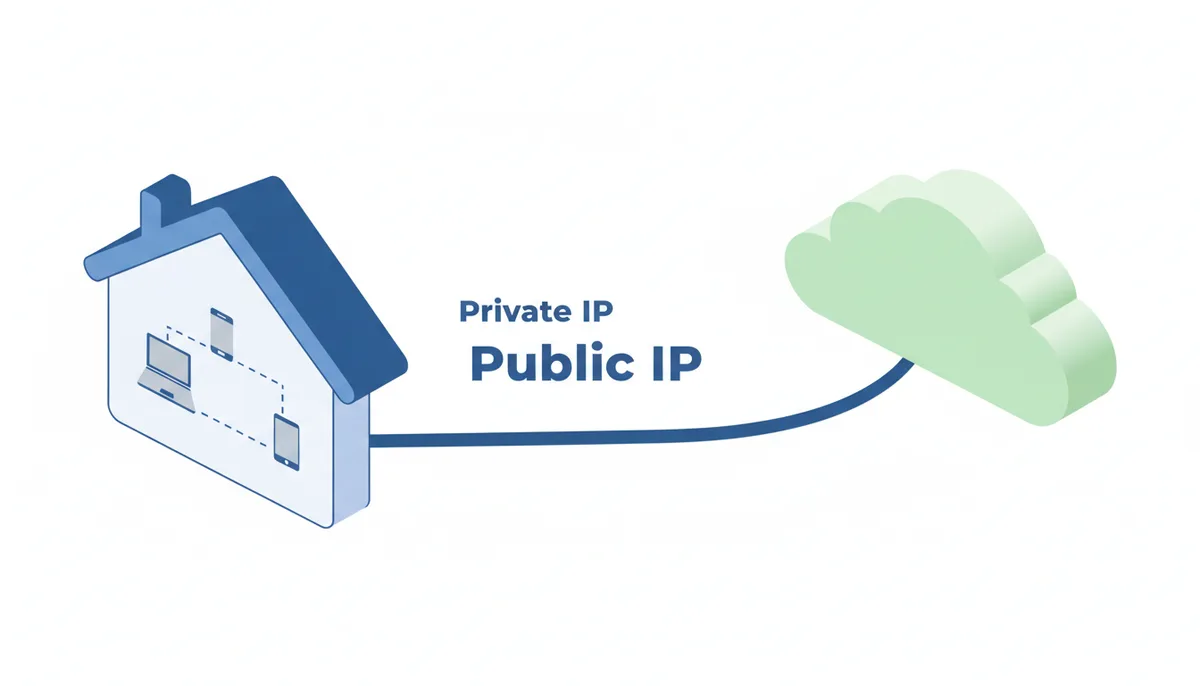
Why Do I Have Two Different IP Addresses?
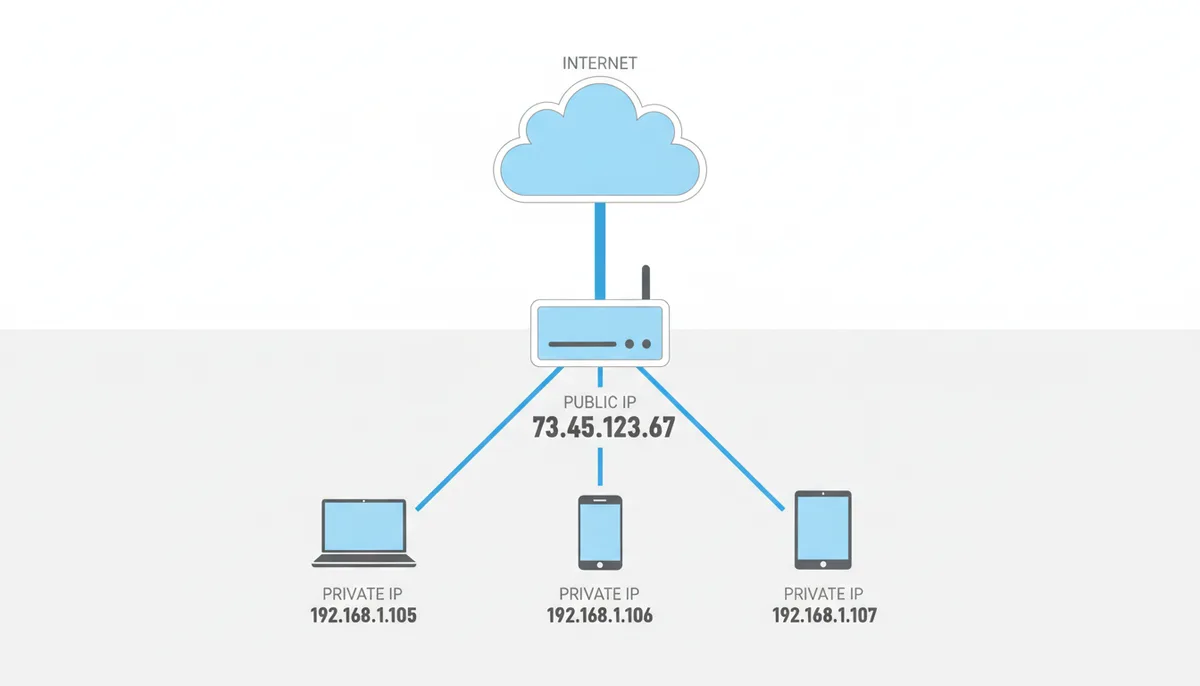
You run ipconfig on your computer and see 192.168.1.105. You visit whatismymyip.com and see 73.45.123.67. Two completely different numbers claiming to be your IP address. This disconnect confuses millions of users, but the explanation reveals an elegant solution to a fundamental internet problem.
Think of your public IP as your building's street address — 123 Main Street. Your private IP is your apartment number — Apt 4B. When Amazon delivers a package, they need the street address to find your building. The doorman handles getting it to your specific apartment. Your router plays doorman for the internet.
This two-address system exists because we ran out of IPv4 addresses. The internet protocol version 4 uses 32-bit addresses, creating about 4.3 billion possible combinations. Sounds massive until you consider that a single household might have 15 connected devices: phones, tablets, laptops, smart TVs, thermostats, security cameras, voice assistants. Without this public/private split, we'd have exhausted the global supply years before smartphones even existed.
Network Address Translation (NAT) makes this work. Your router maintains one public address while managing dozens of private addresses internally. Every device in your home gets its own private IP for local communication, but they all share that single public IP when talking to the outside world. The router tracks who requested what and routes responses back to the right device.
What Is a Public IP Address and What Is It For?
Your public IP address is the globally unique identifier your Internet Service Provider assigns to your router. When you request a webpage, send an email, or stream a video, servers see this address as the source. It's the only address that matters for internet routing.
Three facts define a public IP:
- Globally routable: Any server anywhere can send data back to this address
- ISP-controlled: You can't pick it or change it yourself
- Location-revealing: It maps to your ISP's infrastructure, exposing your approximate city
When whatismymyip.com shows 73.45.123.67 and says you're in Denver, it's reading your public IP. That address belongs to a block your ISP owns and has registered with the appropriate Regional Internet Registry (like ARIN for North America). The geographic accuracy varies — sometimes pinpointing your neighborhood, sometimes just your metro area — depending on how your ISP structures its network.
Every device on your network shares this single public IP. Your laptop checking email, your phone scrolling social media, your TV streaming Netflix — the outside world sees all this traffic coming from the same address. The websites can't tell if you have one device or fifty.
What Is a Private IP Address and Why Does It Exist?
A private IP address identifies a specific device within your local network. Your router assigns these addresses to create an internal communication system. That 192.168.1.105 on your laptop lets it talk to your printer at 192.168.1.120 without involving the internet.
The Internet Assigned Numbers Authority (IANA) reserved three address ranges exclusively for private networks through RFC 1918:
| Class | IP Range | CIDR Notation | Number of Addresses |
|---|---|---|---|
| A | 10.0.0.0 - 10.255.255.255 | 10.0.0.0/8 | 16,777,216 |
| B | 172.16.0.0 - 172.31.255.255 | 172.16.0.0/12 | 1,048,576 |
| C | 192.168.0.0 - 192.168.255.255 | 192.168.0.0/16 | 65,536 |
If your device's IP starts with 10, falls between 172.16 and 172.31, or starts with 192.168, you're looking at a private address. These ranges appear in millions of homes and offices simultaneously because they never touch the public internet directly.
Your router typically runs a DHCP (Dynamic Host Configuration Protocol) server that hands out these private addresses automatically. When you connect a new device to Wi‑Fi, DHCP assigns it the next available address from your network's pool. Most home routers default to the 192.168.1.x or 192.168.0.x range, starting assignments at .100 to leave room for devices you might want to configure with static addresses.
This reuse is the genius of private addressing. Your laptop at 192.168.1.105 and your neighbor's laptop at 192.168.1.105 never conflict because these addresses only exist within each respective network. The internet routers between you and Google don't know these addresses exist — they'd drop any packet with a private IP as the destination.
How NAT Connects Your Private and Public Worlds
Network Address Translation bridges your private network to the public internet. Your router rewrites every outgoing packet, replacing your device's private IP with the router's public IP. When responses arrive, it reverses the process.
Picture a large company with one phone number and 200 employees. When an employee makes a call, the recipient sees the company number. When someone calls back, the receptionist routes the call to the right desk based on their notes about who called whom. NAT works the same way.
The technical process happens in milliseconds. Your laptop at 192.168.1.105 requests a webpage. The router receives this request and:
- Records the transaction: "Laptop (.105) wants to talk to web server X on port 80"
- Rewrites the packet's source address from 192.168.1.105 to your public IP 73.45.123.67
- Assigns a temporary port number (like 54321) to track this specific connection
- Forwards the modified packet to the internet
When the web server responds to 73.45.123.67:54321, your router checks its NAT table, finds the matching entry, rewrites the destination to 192.168.1.105, and delivers the webpage to your laptop. This stateful tracking handles thousands of simultaneous connections across all your devices.
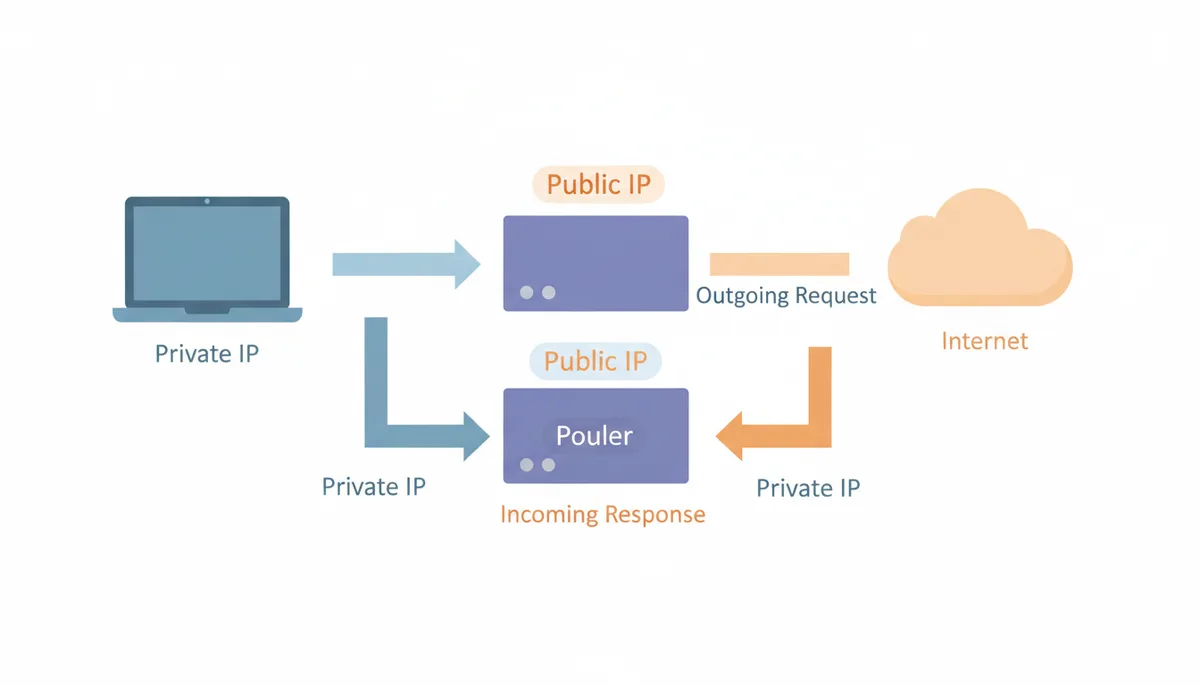
Port Address Translation (PAT), sometimes called NAT overloading, is what most home routers actually use. It's still called NAT in casual conversation, but PAT specifically tracks port numbers to distinguish between multiple internal devices making similar requests. That's why your router can handle two computers visiting the same website simultaneously — each gets a different source port number in the NAT table.
How to Find Your Public and Private IP Addresses
Finding your public IP takes five seconds: visit whatismymyip.com or any similar service. These sites show exactly what the rest of the internet sees when you connect. Your router's administration page usually displays this too, often labeled as "WAN IP" or "Internet IP" in the status section.
Finding your private IP requires checking your device's network settings. The method varies by operating system:
| Operating System | GUI Method | Path/Instructions | Command Line Method | Command |
|---|---|---|---|---|
| Windows | Settings | Settings > Network & Internet > Properties | Command Prompt | ipconfig |
| macOS | System Settings | Apple Menu > System Settings > Network > Details | Terminal | ifconfig en0 |
| Linux | Network Manager | Varies by distribution | Terminal | ip addr show |
| iOS | Settings | Settings > Wi‑Fi > (i) next to network name | Not available | N/A |
| Android | Settings | Settings > Network & Internet > Wi‑Fi > Network details | Terminal emulator | ip addr |
On Windows, ipconfig shows all network adapters. Look for "IPv4 Address" under your active connection — usually "Ethernet adapter Ethernet" for wired or "Wireless LAN adapter Wi‑Fi" for wireless. The default gateway listed there is your router's private IP, typically ending in .1.
Mac users running ifconfig should check the "inet" value under en0 (Wi‑Fi) or en1 (Ethernet). Linux users see similar output from ip addr show, looking for the address after "inet" on their active interface.
Mobile devices hide this in settings, but it's there. Both iOS and Android show your private IP in the advanced Wi‑Fi settings for your current network. You might also see your router's IP listed as "Router" or "Gateway."
Which Address Do Network Tools Actually See?
External tools see only your public IP — full stop. When whatismymyip.com displays 73.45.123.67, that's because your router translated your device's private address before the request ever left your network. The website has no way to detect that you're actually browsing from 192.168.1.105 internally.
This limitation extends to all internet services:
- Online games: Game servers see your public IP for matchmaking and connection
- Streaming services: Netflix checks your public IP to determine your region
- Port scanners: Security tools probe your public IP's ports, not individual devices
- Remote access: SSH or RDP connections target your public IP first
Internal network tools operate in the opposite realm. Your router's DHCP client list shows every device's private IP. Network scanning apps like Fing or Angry IP Scanner map your local network by probing private IP ranges. The arp -a command on your computer lists private IPs of devices it has communicated with recently.
This separation provides accidental security. A website can't target your specific laptop at 192.168.1.105 because that address doesn't exist on the internet. Attackers must first breach your router (via your public IP) or compromise your local network through other means. NAT isn't a security feature by design, but it creates a barrier between your devices and direct internet access.
Understanding this distinction helps when troubleshooting. Port forwarding fails? You're probably using the private IP where you need the public one. Can't connect to a local file server from outside? You're trying to reach a private IP from the internet. The tool's location — inside or outside your network — determines which address it can see.
Static vs. Dynamic: Does Your Public IP Change?
Most residential internet customers get dynamic public IPs. Your ISP maintains a pool of addresses and assigns them to customers as needed. Turn off your router for a week, and you'll probably get a different public IP when you reconnect. Leave it running, and you might keep the same address for months.
ISPs use DHCP at a massive scale for this allocation. Your router requests an address and receives a lease — typically 24 hours to 7 days. As expiration approaches, your router tries to renew the same address. Usually it succeeds, creating the illusion of a permanent address. But the ISP can reclaim and reassign addresses based on network needs.
Checking involves simple observation. Note your public IP today, then check again in a week. Changed? You have dynamic allocation. Business internet plans often include static IPs — addresses that never change regardless of router reboots or extended downtime.
Static public IPs cost extra because they reduce the ISP's flexibility. Instead of sharing 1000 addresses among 1200 customers (knowing not everyone connects simultaneously), they must reserve addresses permanently. Many ISPs charge extra for a static IP, often through business plans or add-ons, while some residential ISPs don't offer them at all.
You need a static public IP to:
- Host a web server or game server from home
- Access security cameras reliably without dynamic DNS
- Run a mail server (though most ISPs block port 25 anyway)
- Connect to work VPNs that whitelist specific IPs
- Use certain business services that authenticate by IP
For everyone else, dynamic IPs work fine. Streaming, gaming, browsing, and video calls don't care if your IP changes overnight. Dynamic DNS services like No-IP or DuckDNS can even provide stable hostnames for dynamic IPs, updating automatically when your address changes.
Advanced Scenarios: CGNAT and the Shift to IPv6
Carrier-Grade NAT adds another translation layer at your ISP. Instead of giving you a real public IP, they assign a private IP to your router and perform NAT themselves. Multiple customers share each public IP at the ISP level.
Detecting CGNAT takes one comparison. Check your router's WAN IP (in its status page) against whatismymyip.com. If they match, you have a standard connection. If your router shows something like 100.75.x.x (from the 100.64.0.0/10 range) while the website shows a different address, you're behind CGNAT.
CGNAT breaks several common use cases:
- Port forwarding: You can't forward ports when you don't control the public IP
- Gaming: Some peer-to-peer games fail with double NAT
- VPN hosting: Incoming connections can't reach your router
- Remote access: No direct path to your home network
ISPs deploy CGNAT to stretch their IPv4 allocations. Mobile carriers pioneered this approach — your phone almost certainly sits behind CGNAT. Home ISPs increasingly adopt it in IPv4-exhausted regions. Some offer "public IP" upgrades to escape CGNAT, essentially charging for what used to be standard.
IPv6 promises to reduce this complexity. With 340 undecillion addresses (that's 340 followed by 36 zeros), IPv6 provides enough address space for every device to have a globally unique address. This vastly reduces the need for IPv4-style NAT, though networks still implement firewalls for security and may use unique local addresses (IPv6's equivalent of private addresses) for internal-only resources.
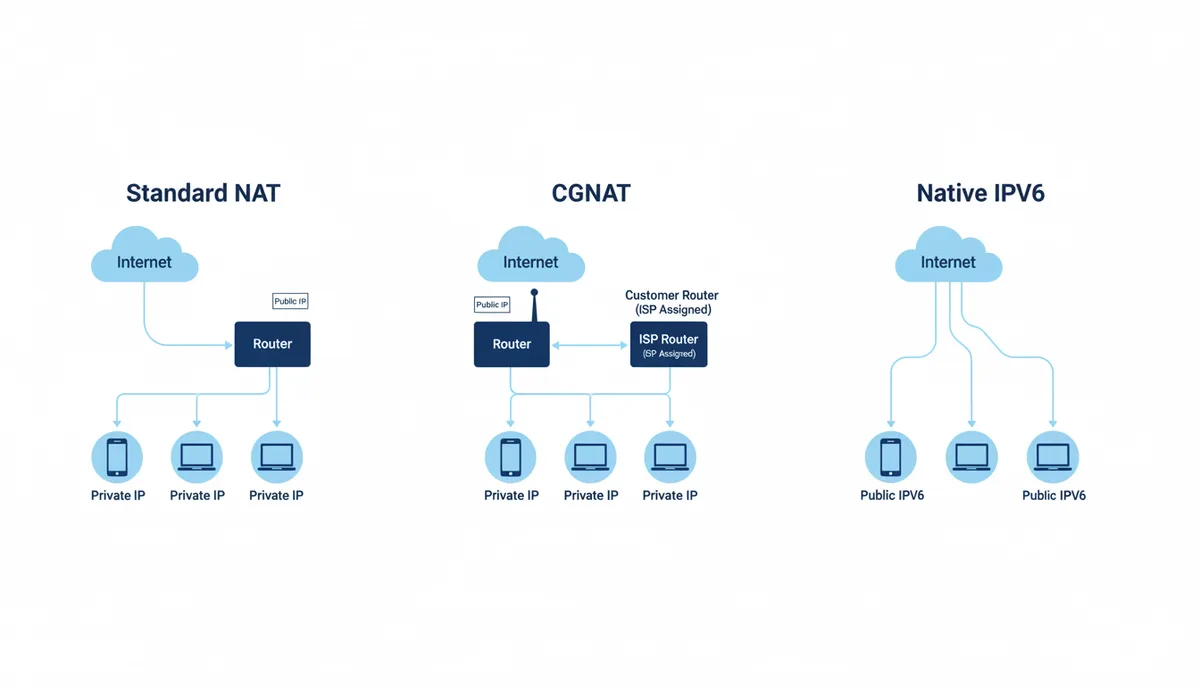
The transition happens gradually through "dual-stack" deployment. Your devices request both IPv4 and IPv6 addresses, using whichever protocol the destination supports. Check your configuration — you probably have IPv6 addresses already. They look like 2607:f8b0:4004:c07::8a instead of the familiar dotted decimals.
IPv6 adoption continues to grow but varies significantly by region and provider. Some countries see majority IPv6 traffic while others have minimal deployment. Your ISP might fully support it, partially support it, or ignore it entirely. The dual-stack period will last years as the internet gradually migrates.
Troubleshooting Common NAT Problems in Real Networks
NAT usually works invisibly until something breaks. The most frequent failure involves port forwarding for hosting services. You configure your router to forward port 80 to your web server at 192.168.1.150, but external connections fail. The culprit often lies in multiple NAT layers or firewall conflicts.
Start debugging at your computer. Windows Firewall or iptables might block incoming connections even after successful port forwarding. Test locally first — can another device on your network reach 192.168.1.150:80? If not, the problem isn't NAT but your host configuration. Temporarily disable the firewall to test, but remember to create proper rules afterward.
Next, verify the forward at your router. Access the port forwarding section and confirm:
- External port: 80 (what the internet sees)
- Internal IP: 192.168.1.150 (your server)
- Internal port: 80 (where your server listens)
- Protocol: TCP (or both TCP/UDP)
The external port and internal port don't need to match. Forward external 8080 to internal 80 if your ISP blocks standard web ports. Many routers require you to apply or save changes — look for a separate "Apply Settings" button after creating the rule.
Test from outside your network. Your phone on cellular data works, or use an online port checker. Testing from inside your network often fails because consumer routers don't support "NAT loopback" — they can't forward traffic that originates and terminates on the same network. This limitation confuses many users who test their public IP from their own computer.
Double NAT creates harder problems. If your setup includes ISP modem-router combo unit plus your own router, you've created two NAT layers. Port forwarding on your router sends traffic to the modem's private network, not your devices. Solutions include:
- Enable "bridge mode" on the ISP device, turning it into a simple modem
- Configure DMZ on the ISP device pointing to your router's WAN IP
- Set up identical port forwards on both devices
Gaming consoles report NAT types that indicate connection quality. "Open NAT" means full connectivity. "Moderate NAT" allows most connections but might limit party chat or certain game modes. "Strict NAT" breaks peer-to-peer gaming. These classifications actually describe port accessibility — Open NAT successfully forwards required ports, while Strict NAT indicates forwarding failures.
UPnP (Universal Plug and Play) automates port forwarding but creates security risks. Malware can use UPnP to open ports without your knowledge. Enable it for gaming convenience, but disable it for better security. Manual port forwarding takes more effort but gives you explicit control over external access.
How Businesses Handle IP Addressing at Scale
Enterprise networks face IP management challenges that dwarf home setups. A corporate campus might support 50,000 devices across multiple buildings. They can't rely on a single 192.168.1.x subnet that maxes out at 254 addresses. Instead, they deploy hierarchical IP schemes with careful planning.
Large organizations typically use the 10.0.0.0/8 range, which provides 16.7 million private addresses. They subnet this space based on logical boundaries. A university might allocate:
- 10.1.0.0/16 for dormitories (65,534 addresses)
- 10.2.0.0/16 for academic buildings
- 10.3.0.0/16 for administrative offices
- 10.10.0.0/16 for wireless networks
Each building gets a smaller subnet within these allocations. The engineering building might receive 10.2.5.0/24 (254 addresses), while the larger library gets 10.2.8.0/23 (510 addresses). Network administrators plan these allocations years in advance, leaving room for growth.
VLANs (Virtual Local Area Networks) add another layer of organization. The same physical switches carry traffic for multiple logical networks. Student devices land on VLAN 100 with restricted internet access. Faculty computers join VLAN 200 with research database access. Servers occupy VLAN 300 with heightened security. Each VLAN gets its own IP subnet, enforcing separation at layer 2.
Businesses often run internal DNS servers to manage this complexity. Instead of remembering that the mail server is 10.3.50.25, employees use mail.company.internal. These private DNS zones work only within the corporate network, resolving private IP addresses that public DNS servers would reject.
Many enterprises operate RFC 1918 addresses internally while maintaining public IP blocks for external services. A company might own 203.0.113.0/24 (256 public addresses) but run thousands of devices on private IPs. Only systems requiring direct internet access — web servers, email gateways, VPN concentrators — get precious public addresses.
IP Address Management (IPAM) software becomes essential at scale. These systems track assignments, prevent conflicts, and automate DHCP/DNS updates. Microsoft's IPAM, Infoblox, and BlueCat replace spreadsheets that become error-prone as networks grow. They integrate with network equipment to provide real-time visibility into IP usage.
Enterprise NAT differs from home routers. Instead of one-to-many NAT, businesses might deploy one-to-one NAT, mapping specific internal servers to dedicated public IPs. This permits incoming connections while maintaining address flexibility. Load balancers often handle this translation, distributing traffic across multiple internal servers sharing one public address.
When Private IPs Leak: Security Implications and Real Attacks
Private IP addresses appearing in public contexts signal configuration errors that can aid attackers. While these addresses can't route on the internet, they reveal details about your internal network structure.
Email headers commonly expose internal addressing. Corporate emails often contain traces like:
Received: from mail01.internal (10.1.5.20) by edge-relay.company.com
This reveals the internal mail server's hostname and private IP. Attackers collecting these details over time can map internal network structures, learning naming conventions and subnet organization without directly probing the network.
Web applications leak private IPs through misconfigured reverse proxies or error messages. A header like X-Forwarded-For: 192.168.100.50 tells attackers about internal web server addressing. Stack traces displaying database server IPs provide reconnaissance value even though the addresses aren't directly reachable.
Server-Side Request Forgery (SSRF) vulnerabilities present a more serious risk. These flaws let attackers trick web servers into making requests to internal resources. An image processing service might accept user-supplied URLs and inadvertently fetch http://192.168.1.1/admin from within the network. Cloud environments face particular challenges here — services like AWS implement Instance Metadata Service version 2 (IMDSv2) with token-based authentication to prevent SSRF attacks from accessing sensitive metadata through the 169.254.169.254 address.
For home and small business users, the practical concern is simpler: avoid exposing internal network details unnecessarily. Configure your router to use non-default private IP ranges (avoiding common 192.168.1.x), ensure error pages don't display system information, and be cautious about sharing screenshots that show internal IP addresses. While your private IPs can't be attacked directly from the internet, revealing them provides attackers with information about your network layout they shouldn't have.
Frequently Asked Questions
Does using a VPN change my public or private IP?
A VPN changes your public IP address to that of the VPN server you connect to. Your private IP address, which is used for your local network, remains unchanged. The VPN creates an encrypted tunnel from your device to the VPN server, and all your internet traffic appears to originate from the server's IP address. Websites see the VPN server's location, not yours. Your local network connections — like printing or file sharing — continue using your original private IP.
Can two devices on my network have the same private IP?
No. Your router's DHCP server ensures every device on your local network is assigned a unique private IP. Manually assigning the same IP to two devices would cause an 'IP address conflict' and network problems for both. When this happens, Windows shows "IP address conflict" notifications. Both devices experience intermittent connectivity as they fight for the address. Modern DHCP servers check for conflicts before assigning addresses, but manual configuration bypasses this protection.
Is a private IP address more secure than a public one?
The security comes from the NAT process that uses private IPs, which acts as a basic firewall by hiding your devices from the public internet. The address itself isn't inherently more or less secure. Private addresses simply can't be reached from the internet, forcing attackers to compromise your router first. This "security through obscurity" shouldn't be your only protection, but it does prevent direct attacks on individual devices.
Can my ISP see my private IP addresses?
No, your ISP cannot see the private IP addresses of devices behind your router. They only see the single public IP address assigned to your router and the traffic coming from it. Your router handles all internal addressing independently. The ISP sees data volumes and destination addresses but not whether your laptop or phone made each request. This privacy barrier exists even with ISP-provided routers.
How is the loopback address (127.0.0.1) different from a private IP?
A private IP (like 192.168.1.5) is for communicating with other devices on your local network. The loopback IP (127.0.0.1 or 'localhost') is used by a device to communicate with itself, for testing and running local services. Every device has the same loopback address, but it always refers to itself. Web developers use localhost to test sites running on their own machine. Network applications use it for inter-process communication without touching the physical network.
If I have a dynamic IP, how often will it change?
It varies by ISP. It can be as frequent as every 24 hours or only when you reboot your router after it's been off for an extended period. For most users, the same IP can persist for weeks or months. Cable internet tends toward stability — the same IP might last six months. DSL connections often change more frequently. The only guarantee is that it can change, not that it will. ISPs balance address efficiency with customer convenience, knowing that frequent changes annoy users who rely on remote access.
Making Sense of Your Two-Address System
The distinction between public and private IP addresses isn't just technical trivia — it shapes how every internet-connected device in your home operates. Your router juggles these two worlds constantly, maintaining private addresses for internal organization while presenting a single public face to the internet.
When troubleshooting network issues or configuring services, remember the fundamental rule: external services see only your public IP, while local devices communicate using private IPs. This separation, born from IPv4 scarcity, accidentally created a security boundary that protects billions of devices from direct internet exposure.
Tools like whatismymyip.com reveal your public IP instantly because that's all they can see. Your private network remains hidden behind NAT, accessible only from within your local environment. Understanding this visibility boundary helps you configure port forwarding correctly, diagnose connection problems faster, and better secure your network.
As IPv6 deployment continues, this clear public/private distinction may blur. Future networks might give every device a public address again. Until then, NAT remains the invisible translator that makes modern internet access possible despite a 4.3-billion-address limit designed in 1981.
Sources
- Internet Engineering Task Force (IETF) — The specific private IPv4 address ranges (10.0.0.0/8, 172.16.0.0/12, 192.168.0.0/16).
- Internet Assigned Numbers Authority (IANA) — The official allocation of IPv4 address blocks and the authority that delegates them to Regional Internet Registries.
- American Registry for Internet Numbers (ARIN) — Information on IPv4 exhaustion and policies for allocating public IP addresses in its region.
- Mozilla Developer Network (MDN) — Clear, authoritative definitions for general web and networking terms like IP Address, LAN, and WAN.