How to Use DNS Resolver Results to Investigate a Website Connection Problem
A step-by-step guide for admins and users to diagnose website connection issues with DNS using dig, nslookup, resolver comparisons, and best practices.
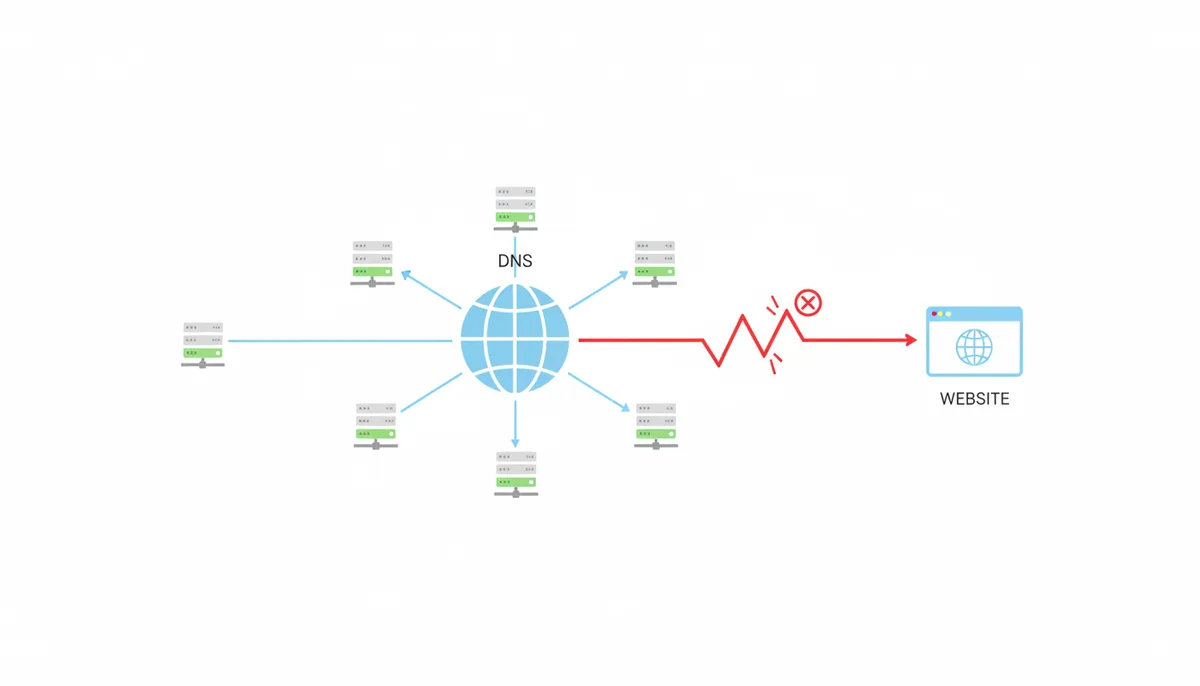
When you can't connect to a website, the first thing to check is DNS. DNS is the internet's phone book, translating human-readable domain names (like example.com) into the IP addresses that computers use to find each other. If DNS is broken, you can't reach the website, even if it's up and running. This guide will teach you how to use DNS resolver tools to diagnose connection issues and rule DNS in or out as the cause.
Why Start Your Troubleshooting With DNS?
DNS is the first step in any web connection. When you type a URL, your device sends a DNS query to find the IP address. If that query fails, you won't be able to connect, even if the website is fine. Problems can be local (your DNS), regional (your ISP's DNS), or global (the website's DNS configuration).
By querying DNS directly, you bypass the browser and your local cache to get objective data about what's really happening.
How Does a DNS Query Actually Find a Website?
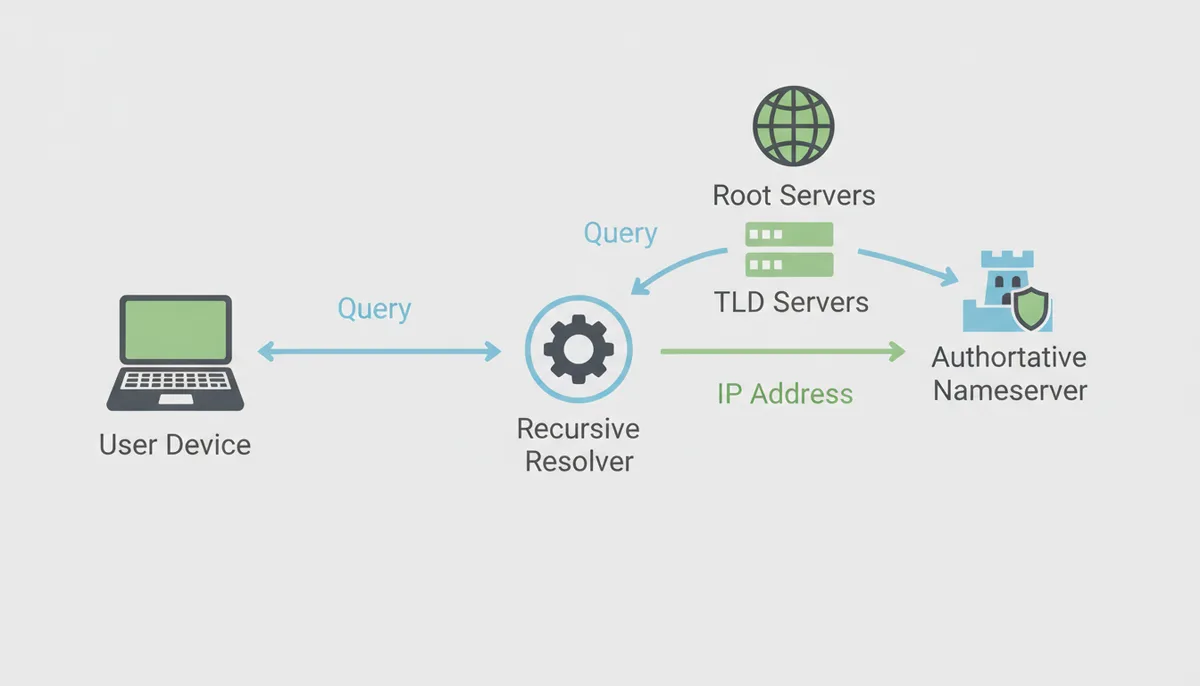
A DNS query is a multi-step process. Your device sends a request to a recursive resolver (like your ISP's or Google's), which then queries the root servers, the TLD (top-level domain) servers, and finally the authoritative nameserver for the domain — the chain of responsibility for name resolution is explained by the global domain name hierarchy. Root servers, TLD servers, and authoritative nameservers are all part of the resolution chain.
The recursive resolver does the legwork, while the authoritative nameserver gives the final, official answer. DNS caching and TTL (Time to Live) speed up browsing but can also cause outdated information to persist, leading to connection issues.
What Are the Essential Tools for DNS Investigation?
The three primary command-line tools for DNS investigation are `nslookup` (available on Windows), `dig` (the standard on macOS/Linux), and `host` (a simpler alternative). These tools are built into Terminal/Command Prompt and provide detailed output about DNS records. Graphical/web-based tools, like WhatIsMyIP.com's own tools, can also be used for cross-referencing results.
| Tool Name | Primary OS | Key Strength | Basic Syntax Example | Common Use Case |
|---|---|---|---|---|
| nslookup | Windows | Universally available | nslookup example.com | Basic DNS lookup |
| dig | macOS/Linux | Detailed output | dig example.com | Advanced DNS queries |
| host | Linux | Simple and fast | host example.com | Quick DNS checks |
How Do I Use `dig` to Get a Website's IP Address?
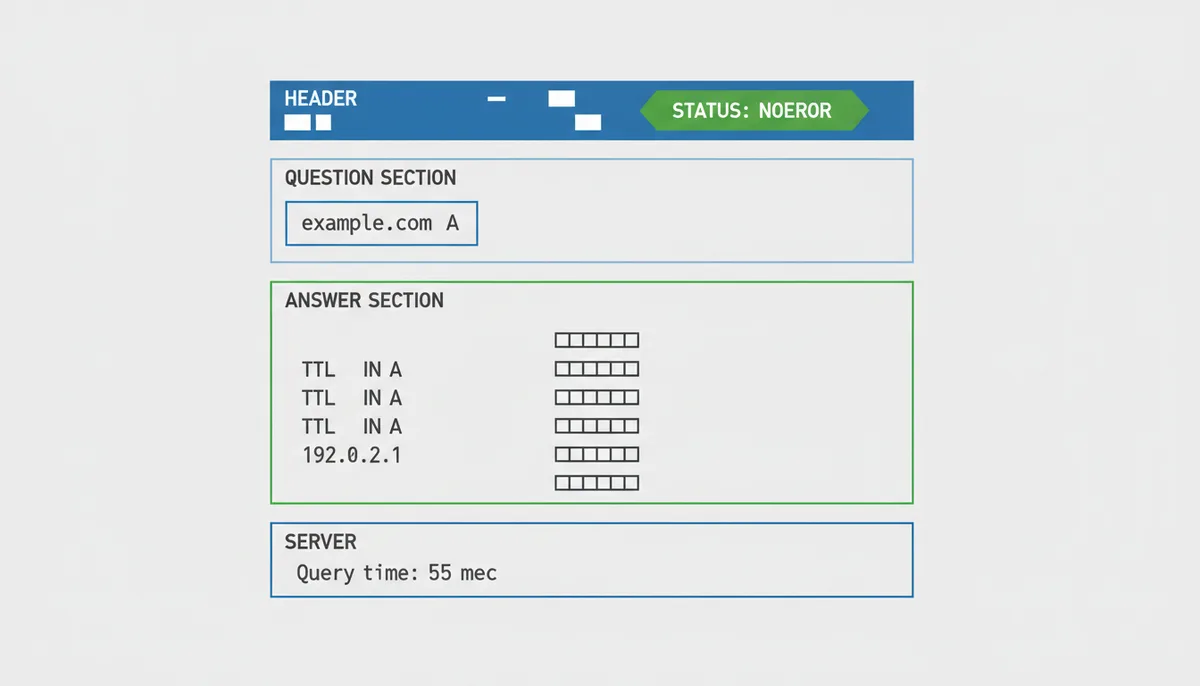
`dig` is a powerful tool for DNS queries. To find a website's IP address, use `dig example.com` for A (IPv4) and `dig example.com AAAA` for AAAA (IPv6) records. The output includes the QUESTION, ANSWER, AUTHORITY, and ADDITIONAL sections, which provide details about the domain, TTL, record type, and IP address.
You can also specify a different DNS server, like `dig @8.8.8.8 example.com`, to check if your local/ISP resolver is the problem. See Google's Public DNS documentation for examples and best practices when using 8.8.8.8 in queries. Using 8.8.8.8 with dig and nslookup
How Do I Use `nslookup` for the Same Investigation?
`nslookup` is a classic tool for DNS queries on Windows. Use `nslookup example.com` for basic queries or `nslookup -type=AAAA example.com` for AAAA records. The output includes a "Non-authoritative answer" label, indicating the data came from a recursive resolver's cache. You can change the query type and specify a different DNS server within the interactive `nslookup` session.
What Do Different DNS Record Types Tell Me?
Beyond A/AAAA records, other critical record types include CNAME (aliases), NS (authoritative servers), MX (mail servers), and SOA (start of authority). These records reveal a website's setup and can indicate misconfigurations. Use `dig example.com CNAME` or `nslookup -type=ns example.com` to query for these specific types. For definitions of record types and how they are used, see the Cloudflare DNS learning resources. DNS record types explained
| Record Type | Full Name | Purpose | What It Tells a Troubleshooter |
|---|---|---|---|
| A | Address Record | Maps a domain to an IPv4 address | Is the website pointing to the correct server IP? |
| AAAA | IPv6 Address Record | Maps a domain to an IPv6 address | Is the website accessible via IPv6? |
| CNAME | Canonical Name Record | Creates an alias for a domain | Is the domain correctly aliased? |
| NS | Name Server Record | Specifies authoritative nameservers | Which servers are authoritative for the domain? |
| MX | Mail Exchange Record | Specifies mail servers | Are mail servers correctly configured? |
| SOA | Start of Authority Record | Provides admin contact and timing parameters | Who administers the domain and what are the timing parameters? |
How Do I Interpret Common DNS Errors and Empty Results?
| Error/Result | Likely Meaning | Sample Output | Next Action |
|---|---|---|---|
| NXDOMAIN | Domain does not exist | dig example.com ;; ->>HEADER<<- opcode: QUERY, status: NXDOMAIN, id: 12345 |
Check for typos in the domain name |
| NOERROR with no A/AAAA answer | Domain exists but has no IP address | dig example.com ;; ANSWER SECTION: example.com. 3600 IN A |
Check for CNAME or other record types |
| SERVFAIL | Authoritative server failure | dig example.com ;; ->>HEADER<<- opcode: QUERY, status: SERVFAIL, id: 12345 |
Check authoritative nameservers directly |
| REFUSED | Server refused the query | dig example.com ;; ->>HEADER<<- opcode: QUERY, status: REFUSED, id: 12345 |
Check for policy reasons or misconfiguration |
| Timeout/no response | Network path or resolver issue | dig example.com ;; connection timed out; no servers could be reached |
Check network path and resolver configuration |
| Mismatched answers | Resolver or caching issue | dig @8.8.8.8 example.com ;; ANSWER SECTION: example.com. 3600 IN A 93.184.216.34 dig @your-isp example.com ;; ANSWER SECTION: example.com. 3600 IN A 192.0.2.1 |
Check resolver cache and configuration |
Putting It All Together: A Step-by-Step Diagnostic Workflow
- Ping the domain to check if it resolves:
ping example.com
If it fails, DNS is likely the issue. If it succeeds, proceed to the next step. - Query the domain using your default resolver:
dig example.com
ornslookup example.com
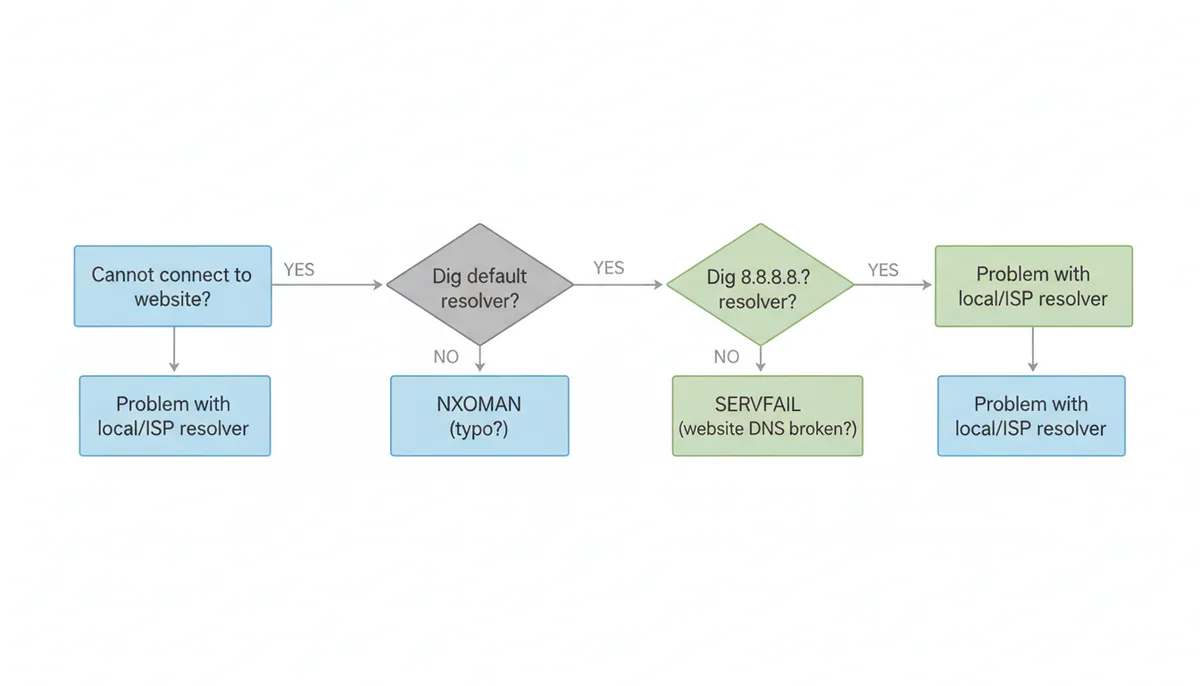
Note the A, AAAA, CNAME, TTL, and status of the answer. - Query the domain using a public resolver (e.g., 8.8.8.8):
dig @8.8.8.8 example.com
ornslookup -server 8.8.8.8 example.com
Compare the results with the default resolver. Differences indicate a local/ISP resolver issue. - Check for `www` versus apex domain:
dig www.example.com
ornslookup www.example.com
Compare the results with the apex domain. Differences may indicate a misconfiguration. - If both resolvers fail with NXDOMAIN, check for typos in the domain name.
- If both resolvers fail with SERVFAIL, the website's own DNS is likely broken.
- Use `whois` to find the authoritative nameservers and query them directly:
whois example.com
dig @ns1.example.com example.com
ornslookup -server ns1.example.com example.com
This provides the ultimate source of truth. - If the authoritative nameserver returns a valid answer, the issue is not DNS. Move to HTTP/firewall/routing checks.
- If the authoritative nameserver fails, the issue is with the website's DNS configuration.
- If the public resolver succeeds but the default resolver fails, the issue is with the local/ISP resolver.
- If the public resolver fails with a timeout/no response, the issue may be with the network path or the public resolver itself.
- If the public resolver returns a different answer, the issue may be with the local/ISP resolver's cache or configuration.
How to Check for DNS Propagation Issues
DNS propagation is the time it takes for changes to DNS records to spread across the internet. This can take up to 48 hours, during which some users may see the old records while others see the new ones. To check for propagation issues, use tools like What's My DNS or DNS Checker. These tools query multiple DNS servers worldwide and show you the results, helping you identify if the new records have fully propagated or if there are any discrepancies.
If you find propagation issues, you can wait for the TTL (Time to Live) to expire, which forces DNS resolvers to fetch the latest records. Alternatively, you can manually flush the DNS cache on your device or router. On Windows, use `ipconfig /flushdns` in Command Prompt. On macOS, use `sudo killall -HUP mDNSResponder` in Terminal. On Linux, use `sudo systemd-resolve --flush-caches` or `sudo service dnsmasq restart`, depending on your distribution.
How to Use DNS over HTTPS (DoH) and DNS over TLS (DoT) for Privacy
DNS over HTTPS (DoH) and DNS over TLS (DoT) encrypt your DNS queries, preventing eavesdropping and tampering. DoH uses the HTTPS protocol, while DoT uses the TLS protocol. Both methods route your queries through a trusted resolver, like Cloudflare's 1.1.1.1 or Google's 8.8.8.8, instead of your ISP's resolver. This can improve privacy and security, especially on public networks.
To use DoH or DoT, configure your device or browser to use a supported resolver. For example, in Firefox, go to `about:config` and set `network.trr.mode` to 2 (DoH) or 3 (DoT). In Windows, use the 1.1.1.1 app to enable DoH. On Android, use the 1.1.1.1 app or configure DoT in your network settings. Note that DoH and DoT can increase latency and may not work with all networks or devices.
How to Troubleshoot DNS Issues on a Network with Multiple Devices
When multiple devices on a network can't connect to a website, the issue is likely with the network's DNS configuration. Start by checking the router's DNS settings. Ensure it's using a reliable resolver, like Google's 8.8.8.8 or Cloudflare's 1.1.1.1. You can also set a static DNS server in the router's settings to bypass the ISP's resolver. If the issue persists, check for network-wide DNS caching problems. Some routers cache DNS responses, which can cause outdated or incorrect data to persist. Flush the router's DNS cache or disable caching if possible.
If the problem affects only some devices, check their individual DNS settings. Ensure they're not using a custom DNS server that might be misconfigured or down. Also, check for local DNS caching issues on each device. On Windows, use `ipconfig /flushdns`. On macOS, use `sudo killall -HUP mDNSResponder`. On Linux, use `sudo systemd-resolve --flush-caches` or `sudo service dnsmasq restart`. If the issue is still unresolved, consider using a public DNS service like 1.1.1.1 or 8.8.8.8 on all devices to rule out ISP-specific problems.
How to Use DNS to Block Access to Specific Websites
DNS can be used to block access to specific websites by modifying the DNS records for those domains. This is often done by changing the A or AAAA records to point to a different IP address, such as a local server or a block page. This method is useful for parental controls, network security, or bypassing geo-restrictions. To implement this, you need access to the DNS settings for the network or device. On a router, you can set up a custom DNS server that resolves the blocked domains to a specific IP. On a device, you can edit the `hosts` file to map the domains to a different IP.
For example, to block access to `example.com` on a Windows device, open the `hosts` file in a text editor with administrative privileges and add the following line: `127.0.0.1 example.com`. This will redirect all requests for `example.com` to the local loopback address, effectively blocking the site. On a router, you can set up a custom DNS server that resolves `example.com` to a different IP, such as a block page or a local server. Note that this method can be bypassed by using a different DNS server or by editing the `hosts` file on the device.
How to Use DNS to Improve Website Performance
DNS can significantly impact website performance, especially for users far from the website's servers. By using a Content Delivery Network (CDN), you can distribute your website's content across multiple servers worldwide, reducing latency and improving load times. CDNs use DNS to route users to the nearest server, ensuring faster and more reliable access. To implement a CDN, sign up with a provider like Cloudflare, Akamai, or Amazon CloudFront. These services provide DNS settings that you can use to point your domain to their network of servers. Once configured, the CDN will handle DNS queries and route users to the optimal server.
Another way to improve performance is by reducing DNS lookup times. This can be done by using a fast and reliable DNS resolver, such as 1.1.1.1 or 8.8.8.8. These resolvers are optimized for speed and can significantly reduce the time it takes to resolve a domain. Additionally, you can use DNS prefetching to resolve domains in advance, reducing the delay when a user navigates to a new page. This can be implemented by adding a `` tag to your HTML, instructing the browser to resolve the domain before it's needed.
How to Use DNS to Prevent DNS Spoofing and Cache Poisoning
DNS spoofing and cache poisoning are attacks where an attacker injects false DNS data into a resolver's cache, redirecting users to malicious sites. To prevent these attacks, use DNSSEC (DNS Security Extensions), which adds cryptographic signatures to DNS records, ensuring their authenticity and integrity. DNSSEC is supported by most modern DNS resolvers and can be enabled in your domain's DNS settings. Additionally, use a trusted DNS resolver, such as 1.1.1.1 or 8.8.8.8, which implement security measures to prevent spoofing and poisoning. These resolvers also support DNSSEC, providing an extra layer of protection.
Another way to mitigate these attacks is by reducing the TTL (Time to Live) of your DNS records. A shorter TTL means that resolvers will fetch the latest records more frequently, reducing the window of opportunity for an attacker to inject false data. However, a shorter TTL can also increase latency and load on your DNS servers, so it's a trade-off between security and performance. Additionally, use a secure connection for DNS queries, such as DNS over HTTPS (DoH) or DNS over TLS (DoT). These protocols encrypt your queries, preventing eavesdropping and tampering. They are supported by most modern browsers and can be enabled in your device or browser settings.
FAQ
Can a DNS problem affect only one website?
Yes, absolutely. This often happens when a specific website's authoritative DNS servers have a problem, or if your ISP's DNS resolver has stale, incorrect cached data for just that one site.
Is it safe to change my computer's DNS resolver to Google's (8.8.8.8) or Cloudflare's (1.1.1.1)?
Yes, it is generally safe and a very common troubleshooting step. These public DNS services are often faster and more reliable than default ISP resolvers. You can easily change it in your network settings and change it back anytime.
My query shows a 'non-authoritative answer'. What does that mean?
It means the answer came from a recursive resolver's cache, not directly from the domain's official authoritative nameserver. It's normal, but if you suspect a problem, the TTL value will tell you how old the data is.
The IP address from the DNS query is correct, but I still can't connect. What's next?
If DNS is resolving correctly, the problem is elsewhere. The next steps are to check for network path issues using `traceroute` or `tracert`, look for firewalls blocking the connection, or investigate potential problems with the webserver itself (e.g., it's down or refusing connections).
Why would a website work on my phone's mobile data but not on my Wi-Fi?
This is a classic sign of a DNS issue. Your phone on mobile data uses your cellular provider's DNS, while your Wi-Fi uses your ISP's DNS. If it works on one but not the other, it strongly suggests the DNS server used by your Wi-Fi is the source of the problem.
What is the `hosts` file and could it cause this problem?
The `hosts` file is a local file on your computer that can manually override DNS for specific domains. It's checked before any external DNS query. An incorrect or outdated entry in your `hosts` file could definitely cause a connection problem to a specific site.
Sources
- Internet Engineering Task Force (IETF) — The foundational definitions of the Domain Name System, specifically RFC 1034 and RFC 1035, which define the concepts, structure, and protocol used in all DNS lookups.
- ISC (Internet Systems Consortium) — Documentation and standards for BIND, the most widely used DNS software. The `dig` command originated as part of BIND, making ISC's resources authoritative on its behavior and output.
- ICANN (Internet Corporation for Assigned Names and Numbers) — Information about the global domain name hierarchy, including the roles of root servers, TLDs, and domain registrars, which are all part of the DNS resolution chain.
- Google Public DNS — Documentation and best practices for using a major public DNS resolver, including command-line examples for `dig` and `nslookup` and explanations of common DNS issues.
- Cloudflare Learning Center — Detailed explanations of DNS concepts like record types (A, CNAME, etc.), caching, and the resolution process. This backs the definitions provided in the article.
- Microsoft Learn — Official documentation for the `nslookup` command as implemented in Windows, confirming its syntax, options, and behavior.