How to Run an Internet Speed Test That Gives a Useful Result
For home and small‑business users: step‑by‑step guidance to run reliable internet speed tests, interpret results, and diagnose slow connections.
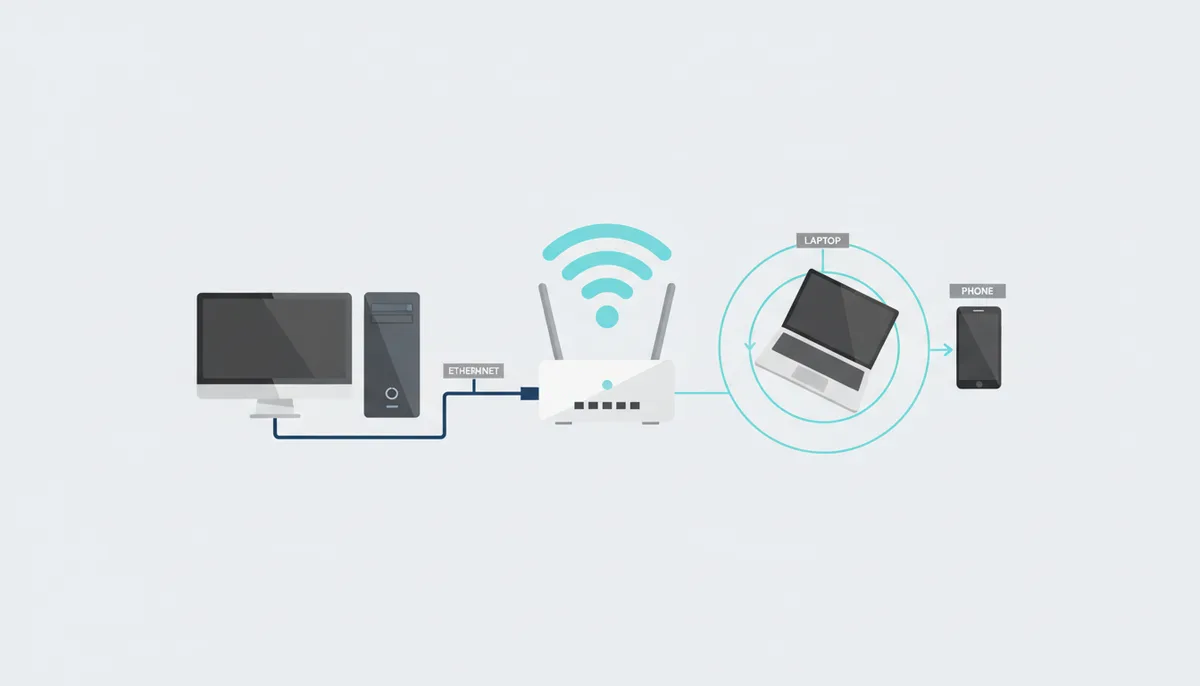
Imagine you're streaming a movie and it keeps buffering, or you're in the middle of a crucial video call and the connection starts dropping. You decide to run a speed test to see what's wrong, but the results are all over the place. What gives? Running a single speed test is almost always misleading.
To get to the bottom of your internet issues, you need a rigorous, repeatable testing methodology. This article will show you how to isolate variables, establish a reliable baseline, and diagnose the true source of your speed problems.
Why a Single Speed Test Is Almost Always Misleading
A speed test measures the path between your device and one specific server, not the entire internet. This distinction is crucial because many variables can skew your results. Wi‑Fi interference, other devices on your network, background processes, server location, and time‑of‑day congestion can all affect the outcome. The goal is to establish a reliable baseline for your connection, not just get a single, random snapshot.
Common variables that skew results include:
- Wi‑Fi Interference: If you're using Wi‑Fi, other devices and even your home's physical layout can cause signal degradation.
- Other Devices on Your Network: Multiple devices using the same network can consume bandwidth, reducing your available speed.
- Background Processes: Software updates, cloud sync services, and other background tasks can eat up bandwidth without you realizing it.
- Server Location: The distance to the speed test server can significantly impact your results. Closer servers generally provide more accurate readings.
- Time‑of‑Day Congestion: Peak hours (like evenings) can see more network traffic, making your connection slower compared to less crowded times.
Understanding What a Speed Test Actually Measures
To interpret your speed test results effectively, you need to understand what each metric measures and why it matters. Here's a breakdown:
| Metric | What It Measures | Why It Matters | What's a Good Result? |
|---|---|---|---|
| Download Speed (Mbps) | The rate at which data is transferred from the internet to your device. | Streaming 4K video, downloading large files, and browsing the web. | 25+ Mbps for 4K streaming, 100+ Mbps for large file downloads. |
| Upload Speed (Mbps) | The rate at which data is transferred from your device to the internet. | Video calls, online gaming, and uploading files. | 5+ Mbps for clear video calls, 10+ Mbps for faster file uploads. |
| Latency (Ping) (ms) | The time it takes for a data packet to travel from your device to a server and back. | Gaming performance, real‑time communication. | 20 ms or less for competitive gaming, 100 ms or less for smooth video calls. |
| Jitter (ms) | The variability in latency over a series of tests. | Consistency of real‑time communication, especially in video and audio streams. | 10 ms or less for smooth performance. |
Understanding these metrics will help you diagnose specific issues and communicate effectively with your ISP if needed.
The Pre-Flight Checklist: Preparing Your Network for an Accurate Test
To get the most accurate speed test results, you need to minimize variables. Here’s a pre‑flight checklist:
- Use a Wired Ethernet Cable: Connect your computer directly to the router using a Cat5e or better cable. This removes Wi‑Fi as a variable and provides a more stable connection.
- Close All Other Applications: Shut down all other applications, browser tabs, and background processes. Pay special attention to cloud sync services like Dropbox or iCloud and software updates.
- Clear the Network: Pause or disconnect all other devices that could be using bandwidth, including phones, smart TVs, game consoles, and security cameras.
By following these steps, you create a controlled environment that isolates your internet speed from other factors.
The 5-Test Method for Establishing a Reliable Baseline
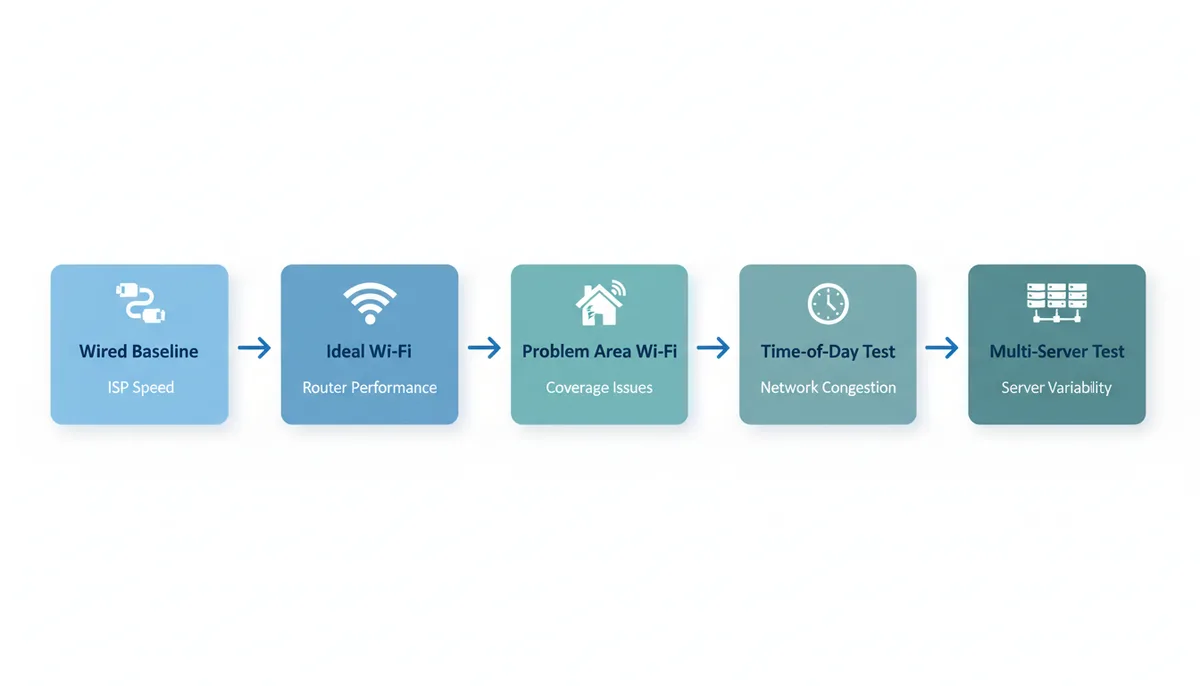
To get a comprehensive picture of your internet performance, you need to run multiple tests under different conditions. Here’s the 5-test method:
- Wired Baseline: Test your connection using a wired Ethernet cable directly from your computer to the router. Run 3 tests, record the time, device, connection type, server, download, upload, latency, and jitter. Use the same test tool/server where possible, and compare the median result. This establishes your true ISP speed.
- Ideal Wi-Fi: Test your Wi-Fi connection near the router, where the signal is strongest. Run 3 tests, record the same details as the wired baseline, and compare the median result.
- Problem-Area Wi-Fi: Test your Wi-Fi connection in the area where you experience poor performance. Run 3 tests, record the same details, and compare the median result.
- Time-of-Day Test: Compare your results during peak hours (evenings) and off-peak hours (early mornings). Run 3 tests at each time, record the same details, and compare the median results.
- Multi-Server Test: Use 2-3 different speed test sites (like Ookla, Cloudflare, and M-Lab) to get a broader perspective. Run 3 tests on each site, record the same details, and compare the median results.
Sample Log Table:
| Test Number | Date and Time | Device | Connection Type | Server | Download Speed (Mbps) | Upload Speed (Mbps) | Latency (ms) | Jitter (ms) |
|---|---|---|---|---|---|---|---|---|
| 1 | 2023-10-05 08:00 | Laptop | Wired | Ookla | 85 | 15 | 12 | 2 |
| 2 | 2023-10-05 08:05 | Laptop | Wired | Ookla | 84 | 14 | 11 | 1 |
| 3 | 2023-10-05 08:10 | Laptop | Wired | Ookla | 86 | 15 | 12 | 2 |
The goal is not to get one number but a set of comparative numbers that will help you diagnose the issue. For example, if your wired baseline is slow, the problem is likely your ISP. If your wired connection is fast but Wi-Fi is slow, the problem is likely your router or Wi-Fi setup.
How to Interpret Your Results and Identify the Bottleneck
Once you have your test results, it’s time to interpret them and identify the bottleneck. Here’s a step‑by‑step guide:
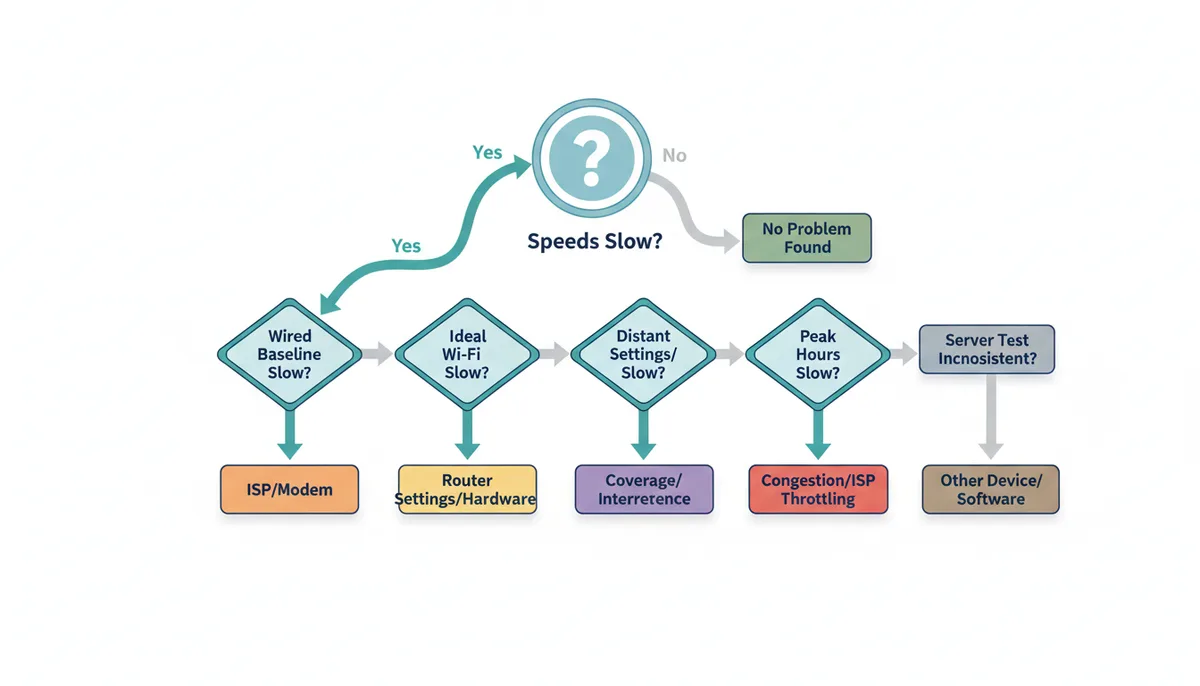
- If the Wired Baseline is Slow: The problem is likely your ISP. Compare your result to the advertised speed on your ISP plan. Keep in mind that "up to" speeds are not guaranteed, and there is usually some overhead.
- If Wired is Fast but Wi‑Fi is Slow: The problem is likely your router. Check your router settings, upgrade firmware, or consider a new router if necessary.
- If Near‑Router Wi‑Fi is Fast but a Distant Room is Slow: The problem is likely range or interference. Consider using range extenders or moving the router to a more central location.
When contacting your ISP, provide them with the data you’ve gathered. Use a script like: "My wired connection directly to your modem at 3 AM only gets 50 Mbps on a 200 Mbps plan. Here are my speed test results from multiple tests and different servers."
Choosing the Right Speed Test Tool for the Job
Different speed test tools use different methodologies, and some are better suited for specific tasks. Here’s a comparison of major test providers:
| Tool | Methodology | Best For | Caveat |
|---|---|---|---|
| Ookla Speedtest | Uses multiple connections to find maximum throughput. | Max throughput, general internet speed. | Can be ad‑heavy, some ISPs may prioritize it. |
| Fast.com (Netflix) | Simulates streaming traffic from Netflix servers. | Streaming performance, real‑world scenarios. | Primarily focused on streaming, may not reflect other types of traffic. |
| Cloudflare Speed Test | Measures network quality metrics like unloaded latency and jitter. | Network quality, consistency of performance. | May not show the highest possible speed. |
| ISP's Own Speed Test | Usually optimized for their network. | Troubleshooting with ISP support. | May not be as accurate as third‑party tests. |
For more advanced users, tools like iperf (for local network testing) and speedtest-cli (for automated testing) can provide deeper insights.
Understanding the Deeper Mechanism of Internet Speed Tests
Speed tests are more than just a click of a button; they involve complex protocols and algorithms to measure various aspects of your internet connection. Understanding these mechanisms can help you interpret your results more accurately and troubleshoot issues more effectively.
Download Speed Measurement:
When a speed test measures download speed, it typically sends a large file from a server to your device and calculates the time it takes to transfer that file. This process is repeated several times to ensure accuracy. The download test is usually multi-threaded, meaning it opens multiple connections simultaneously to maximize the use of your bandwidth. This is why a speed test can often show higher speeds than a single-file download from a web server, which is typically limited to a single connection.
Upload Speed Measurement:
Upload speed is measured by sending data from your device to a server. The process is similar to download speed but focuses on the upload direction. Like download tests, upload tests can use multiple threads to achieve maximum throughput. This is crucial for activities like video conferencing and cloud backups, where consistent upload speed is essential.
Latency and Jitter Measurement:
Latency, often referred to as ping, is the time it takes for a data packet to travel from your device to a server and back. It is measured using ICMP (Internet Control Message Protocol) or TCP (Transmission Control Protocol) packets. The test sends a series of small packets and measures the round-trip time. Jitter, on the other hand, is the variability in latency. It is calculated by measuring the difference in round-trip times between consecutive packets. Low latency and jitter are crucial for real-time applications like online gaming and video calls.
Server Selection and Location:
The location of the server you test against can significantly impact your results. Speed test tools often have a list of servers in different regions. Ideally, you should choose a server that is geographically close to your location to minimize the impact of network latency. However, testing against servers in different regions can also provide valuable insights into your connection’s performance across the internet.
A Real-World Example: Diagnosing and Solving a Slow Internet Issue
Let’s walk through a real-world example to see how the 5-test method and the deeper understanding of speed test mechanisms can help diagnose and solve a slow internet issue.
The Problem:
John has been experiencing slow internet speeds, especially in the evenings. His ISP plan is advertised as 100 Mbps, but his speeds are often around 30 Mbps. He decides to follow the 5-test method to diagnose the issue.
Test 1: Wired Baseline
John connects his computer directly to the router using a Cat6 Ethernet cable. He runs a speed test and gets a consistent 85 Mbps download speed and 15 Mbps upload speed with a latency of 12 ms and jitter of 2 ms. This is close to his advertised plan, which suggests that his ISP is delivering the expected speed.
Test 2: Ideal Wi-Fi
John moves to a room near the router and runs the speed test over Wi-Fi. He gets 75 Mbps download speed, 12 Mbps upload speed, 15 ms latency, and 3 ms jitter. This is slightly lower than the wired baseline but still within an acceptable range.
Test 3: Problem-Area Wi-Fi
John moves to his home office, which is on the other side of the house. He runs the speed test and gets 40 Mbps download speed, 8 Mbps upload speed, 30 ms latency, and 5 ms jitter. This is significantly lower than the wired baseline and ideal Wi-Fi test, indicating that there might be a Wi-Fi range or interference issue.
Test 4: Time-of-Day Test
John runs tests at 3 AM and 8 PM to compare peak and off-peak performance. At 3 AM, he gets 85 Mbps download and 15 Mbps upload speed with 12 ms latency and 2 ms jitter. At 8 PM, he gets 40 Mbps download and 10 Mbps upload speed with 30 ms latency and 5 ms jitter. This suggests that network congestion is affecting his speeds during peak hours.
Test 5: Multi-Server Test
John runs tests on different speed test sites: Ookla, Cloudflare, and Fast.com. The results are consistent across all three sites, confirming the reliability of his findings.
Diagnosis and Solution:
Based on his tests, John concludes that the problem is twofold:
- Wi-Fi Range and Interference: The low speeds in his home office indicate that the Wi-Fi signal is weak or interfered with. John decides to install a range extender or a mesh Wi-Fi system to improve coverage.
- Network Congestion: The significant drop in speed during peak hours suggests network congestion. John contacts his ISP to discuss the issue and uses the logged wired peak/off-peak tests to request a line check, node investigation, or a plan review.
Follow-Up:
After implementing these solutions, John runs another round of tests. With the range extender, his home office Wi-Fi speeds improve to 70 Mbps download and 14 Mbps upload. He also notices a significant improvement in speed during peak hours. John’s ISP reviews his logs and schedules a line check, which reveals no issues but offers a service credit for the inconvenience.
Conclusion:
By following the 5-test method and understanding the deeper mechanisms of speed tests, John was able to diagnose and solve his slow internet issues effectively. This real-world example demonstrates the importance of a comprehensive testing approach in troubleshooting network performance.
Common Pitfalls and How to Avoid Them
While the 5‑test method is a reliable way to diagnose internet speed issues, there are several common pitfalls that can lead to inaccurate results. Here’s how to avoid them:
1. Using the Wrong Connection Type:
One of the most common mistakes is running a speed test over Wi‑Fi when you should use a wired connection. Wi‑Fi can introduce significant variability due to interference and signal strength. Always start with a wired Ethernet connection to establish a baseline.
2. Ignoring Background Processes:
Background processes like software updates, cloud sync services, and video streaming can consume bandwidth, affecting your speed test results. Close all unnecessary applications and browser tabs before running a test. It’s also a good idea to disable any scheduled updates or backups.
3. Testing Against a Distant Server:
Choosing a server that is geographically distant can lead to higher latency and slower speeds. Most speed test tools allow you to select a server. Choose one that is closest to your location to get the most accurate results.
4. Not Testing at Different Times of Day:
Network congestion can vary significantly depending on the time of day. Peak hours, such as evenings, can see more users online, leading to slower speeds. Running tests at different times, including off‑peak hours, can help you understand the full picture of your internet performance.
5. Using a Single Test Result:
A single speed test is almost always misleading. Running a single test at one time and one location can give you a skewed view of your internet performance. Use the 5‑test method to get a comprehensive set of results that can help you diagnose issues more accurately.
6. Ignoring Latency and Jitter:
While download and upload speeds are important, latency and jitter can be just as crucial, especially for real‑time applications like online gaming and video calls. High latency and jitter can cause lag and dropped connections, even if your speeds are high. Always check these metrics in your speed test results.
7. Not Comparing Results Across Multiple Tools:
Different speed test tools use different methodologies, and some may provide more accurate results for specific use cases. Testing with multiple tools, such as Ookla, Cloudflare, and Fast.com, can give you a more complete picture of your internet performance.
8. Overlooking Router and Modem Settings:
Your router and modem settings can significantly impact your internet speed. Incorrect settings, outdated firmware, or hardware limitations can cause performance issues. Check your router’s settings, update the firmware, and consider upgrading to a more advanced model if necessary.
9. Forgetting to Restart Your Router:
A simple reboot can resolve many common issues. Before running a speed test, restart your router and modem to clear any temporary issues. This can help ensure that your test results are not affected by cached data or temporary glitches.
10. Not Considering ISP Throttling:
Some ISPs may throttle your connection during peak hours or for specific types of traffic, such as streaming or torrenting. If you suspect throttling, contact your ISP and ask for an explanation. You can also use tools like M‑Lab to diagnose and report throttling issues.
Conclusion:
Avoiding these common pitfalls is crucial for getting accurate and reliable speed test results. By following best practices and using a comprehensive testing methodology, you can effectively diagnose and solve internet speed issues, ensuring a smoother, more reliable online experience.
FAQ
Can my ISP see that I'm running a speed test?
Yes, the traffic is easily identifiable. Some ISPs may even prioritize it to improve results, which is why testing with different tools like Fast.com (which mimics Netflix traffic) is a good cross‑reference.
Why is my speed test result faster than my actual file downloads?
Speed tests use multiple simultaneous connections to saturate your line and find its maximum speed. A typical file download uses a single connection and can be limited by the server you're downloading from, not your internet.
What's the difference between Mbps and MB/s?
Mbps is Megabits per second (for internet speed); MB/s is Megabytes per second (for file size). There are 8 bits in a Byte, so divide your Mbps speed by 8 to get the maximum MB/s download rate (e.g., 100 Mbps ÷ 8 = 12.5 MB/s).
Should I restart my router before running a speed test?
Yes. Rebooting your modem and router is an excellent first step. It clears the cache and can resolve simple issues. Do this before you begin the 5‑test method for the cleanest baseline.
Does a speed test use a lot of data?
Yes, a test on a fast connection can use over 1 GB of data. Be mindful if you are on a metered connection with a data cap, such as a mobile hotspot or satellite internet.
My upload speed is much lower than my download speed. Is that normal?
Yes, this is normal for most cable and DSL internet plans, which are "asymmetrical". Fiber optic plans are often "symmetrical", offering equal upload and download speeds.
By following this guide, you’ll be able to run accurate internet speed tests and diagnose the true source of your performance issues. Whether it’s your ISP, router, or network setup, you’ll have the data you need to take the next steps and ensure a smoother, more reliable internet experience.
Sources
- FCC (Federal Communications Commission) — Official US government definitions of 'broadband' and data from their 'Measuring Broadband America' program, which sets a precedent for testing methodology.
- M-Lab — The methodology behind many open internet measurement tools (including Google's). Use for claims about open, verifiable standards for measuring network performance.
- Cloudflare — The explanation of different speed test methodologies, particularly the concepts of loaded vs. unloaded latency, jitter, and packet loss, as detailed in their test's 'About' section.
- IEEE Standards Association — Information about Wi-Fi standards (e.g., 802.11ac, 802.11ax), which can be cited when explaining why a user's Wi-Fi hardware might be a bottleneck.
- SamKnows — White papers and blog posts on best practices for internet measurement, as they are a key partner for regulators like the FCC in performance monitoring.