What an Internet Speed Test Actually Measures
For home and power users: clear explanations of download/upload, latency, jitter, and practical steps to get accurate internet speed test results.
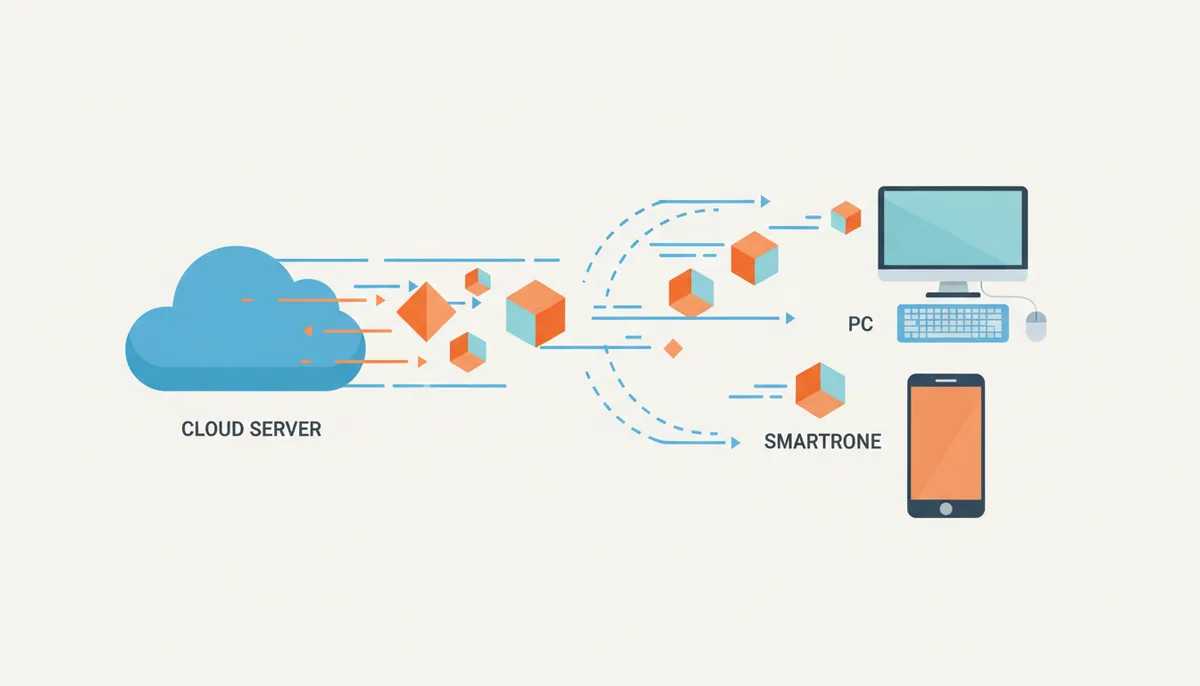
Ever felt frustrated when your internet speed test results fall short of what you're paying for? You're not alone. Many users find themselves puzzled by the discrepancy between their advertised internet speeds and the actual numbers they see in a speed test. This article aims to demystify these numbers, explaining exactly what an internet speed test measures and why your results might differ from what your ISP promises.
Why Don't My Speed Test Results Match My Internet Plan?
Have you ever wondered why you're not getting the speeds promised by your internet service provider (ISP)? It's a common frustration, but it doesn't mean your ISP is cheating you. There are several factors at play here, including the difference between bandwidth and throughput, your local network setup, and external factors like server choice and network congestion.
Understanding how a speed test works is the first step to diagnosing whether you have a genuinely slow connection or if the test itself is giving you misleading results. Let's dive into the details.
What Are the Core Metrics of a Speed Test?
Download Speed (in Mbps): Think of download speed as the width of a water pipe. It measures how quickly data can flow from the internet to your device. For example, a 100 Mbps download speed means you can theoretically download 12.5 MB/s (megabytes per second).
Upload Speed (in Mbps): Upload speed is the opposite—how quickly data flows from your device to the internet. On asymmetric connections like cable or DSL, upload speeds are often lower because typical users download far more data than they upload.
Latency, also known as ping (in ms): Latency measures the round-trip reaction time of your connection. It's like the delay in a phone call; the lower the latency, the faster your response times will be. Jitter is the variation in that reaction time, similar to inconsistent delays in a phone call.
How Does a Speed Test Actually Run?
A speed test works by performing three main phases: finding the lowest-latency server, measuring download speed, and measuring upload speed. Here’s how it happens:
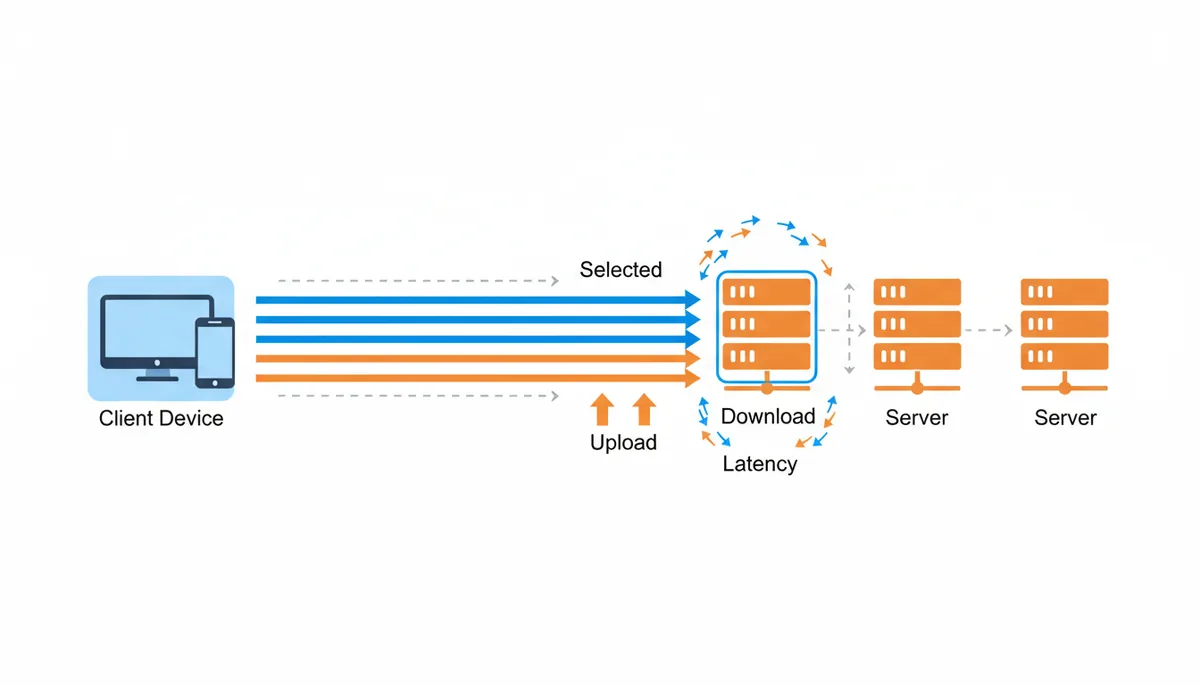
1. The test client pings multiple nearby servers to find the one with the lowest latency. 2. Once the lowest-latency server is identified, the client opens multiple parallel TCP connections to start downloading temporary data files. 3. The amount of data transferred over a fixed period is measured to calculate the download speed. 4. The same process is repeated for uploading data to determine the upload speed. 5. Throughout the test, small ICMP packets are sent continuously to measure latency and jitter.
What Factors in My Home Network Affect Speed Test Results?
Your home network plays a crucial role in the accuracy of your speed test results. Here are some key factors:
- Wi-Fi vs Ethernet: Wi-Fi connections are generally slower due to signal interference, distance from the router, and physical obstructions. Ethernet connections provide a stable and faster connection directly to the router.
- Hardware Bottlenecks: An outdated modem, slow router, or even a slow Network Interface Card (NIC) in your computer can limit your speed. Ensure all your hardware is up-to-date.
- Local Network Congestion: Other devices using your network, especially during peak hours, can consume bandwidth and slow down your connection. Close unnecessary applications and browser tabs before testing.
What External Factors Can Skew My Speed Test?
External factors can significantly impact your speed test results:
- Test Server Performance: A distant or heavily loaded server can create a bottleneck. Ookla's servers are often hosted within ISP data centers, while Fast.com uses Netflix's CDN for real-world streaming performance.
- Internet Rush Hour: During peak evening hours, shared connections in neighborhoods or major internet exchange points can slow down your connection.
- ISP Traffic Shaping and Throttling: Providers can prioritize or slow down certain types of data, which may not be reflected in a standard speed test. This can affect video streaming or torrent downloads.
How Can I Get the Most Accurate Speed Test Reading?
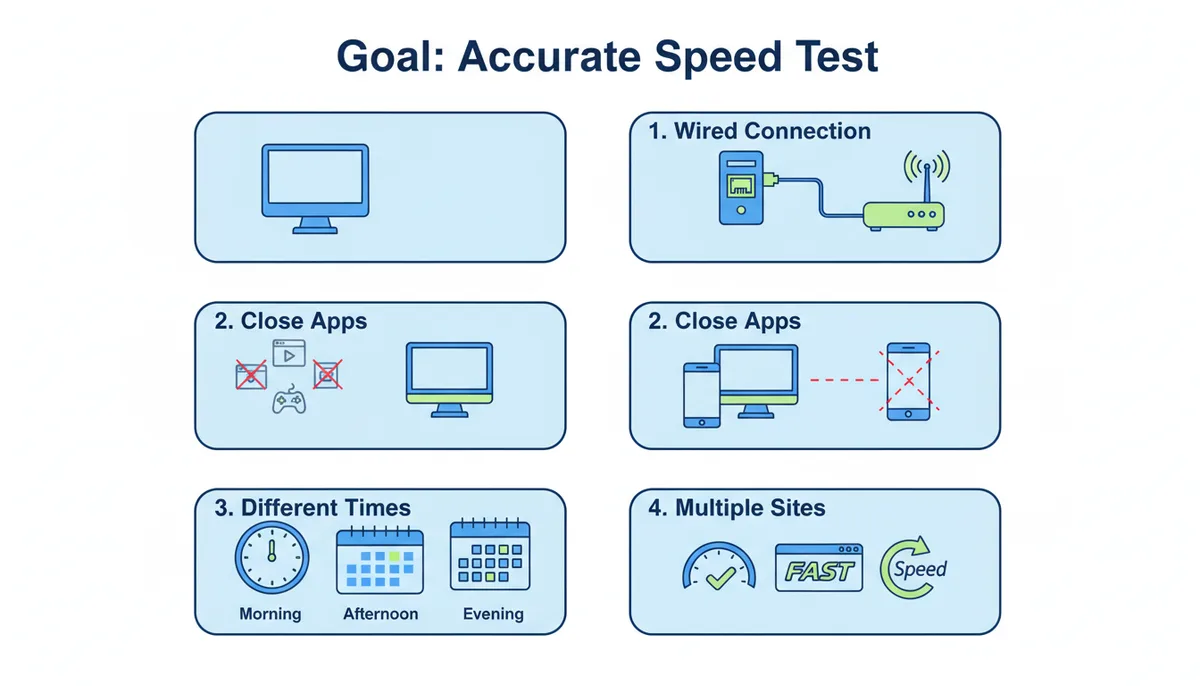
To get the most accurate speed test reading, follow these steps:
- Use Wired Ethernet: Connect your computer directly to the router via Ethernet for the best results.
- Isolate Test Device: Close all other applications and browser tabs before running the test. Disconnect any other devices from the network.
- Test at Various Times: Run tests at different times of the day to identify patterns of congestion.
- Compare Multiple Tests: Use several different speed test services to get a more holistic view of your connection's performance.
What Internet Speed Do I Actually Need?
Different activities require varying levels of internet speed. Here's a breakdown:
| Activity | Recommended Min. Download Speed | Recommended Max. Latency |
|---|---|---|
| Web Browsing & Email | 5-10 Mbps | 50 ms |
| Music Streaming | 1-2 Mbps | 50 ms |
| HD Video Streaming | 15-25 Mbps | 75 ms |
| 4K Video Streaming | 25-40 Mbps | 75 ms |
| Video Conferencing | 5-10 Mbps | 50 ms |
| Competitive Online Gaming | 25-50 Mbps | 20 ms |
What's the Difference Between Bandwidth and Throughput?
Bandwidth refers to the theoretical maximum capacity of your internet connection, often sold by ISPs as "up to" a certain speed. Think of it as the highway's maximum car capacity. On the other hand, Throughput is the actual rate of successful data transfer, which a speed test measures. It's like the number of cars that actually get through the highway in traffic.
Throughput is almost always lower than bandwidth due to protocol overhead, latency, packet loss, and network congestion.
My Speed Is Consistently Low. What Should I Do?
If your speed is consistently low, follow this troubleshooting process:
- Perform an Accurate Test: Use the best practices checklist to ensure you're getting reliable results.
- Power Cycle Your Devices: Reboot your modem and router to clear any temporary issues.
- Check for Firmware Updates: Install any available firmware updates for your router to ensure optimal performance.
- Contact Your ISP: Have documented test results ready to build a strong case. If the issue persists, consider upgrading your internet plan or hardware.
FAQ Section
Can a VPN affect my speed test results?
Yes, a VPN almost always lowers your speed test results. It adds encryption overhead and an extra stop for your data, so the test measures the speed of the VPN server, not your direct internet connection.
What is the difference between Mbps and MB/s?
Mbps stands for megabits per second, while MB/s is megabytes per second. One byte is eight bits, so a 100 Mbps connection has a maximum theoretical download speed of 12.5 MB/s. ISPs advertise in Mbps; download clients often show MB/s.
Is a speed test built into my router more accurate?
It can be. A router-based test measures the speed coming into your home directly, bypassing your local Wi-Fi and computer. This is an excellent tool for isolating whether a speed issue is with your ISP or your internal network.
Why is my upload speed so much lower than my download speed?
Most consumer internet plans (like cable and DSL) are 'asymmetric' because typical users download far more data than they upload. Fiber optic plans are more likely to be 'symmetric,' offering equal upload and download speeds.
What is packet loss and why does it matter?
Packet loss is when small units of data fail to reach their destination and need to be re-sent. Even with high speeds, significant packet loss can cause video buffering, lag in games, and slow page loads because the system is waiting for the missing data.
Does 5G home internet change how speed tests work?
The test mechanism is the same, but the results for 5G internet can be more variable than for wired connections. Factors like your distance from the cell tower, network congestion, and even weather can impact performance, much like Wi-Fi.
How Does Latency Affect My Gaming Experience?
Latency, or ping, is crucial for gaming because it directly impacts your responsiveness and reaction times. In games, high latency can lead to lag, where you see your actions on screen after a delay, making the game feel sluggish. Conversely, low latency ensures smoother gameplay with faster responses.
Let's consider a worked example: Imagine playing a first-person shooter (FPS) game like Call of Duty. If you have a 50 ms latency, you'll experience a near-instantaneous response from your input to the game. However, if your latency is 150 ms, you might feel a noticeable delay between when you move your mouse and when your character moves on-screen. This delay can significantly impact your performance in competitive matches.
In practice, many gamers find that even a small increase in latency can make a big difference. For instance, a latency of 30 ms is considered ideal for most FPS games, while anything above 50 ms can start to feel noticeably laggy. High-latency connections can also cause packet loss, which further degrades the gaming experience by introducing additional delays and inconsistencies.
Compared to alternatives like wired connections, Wi-Fi can introduce more variability in latency due to factors like signal interference and distance from the router. Ethernet connections generally offer lower and more consistent latency, making them preferable for gaming. However, the cost of upgrading to Ethernet might not be justifiable for all users, especially those who are satisfied with their current Wi-Fi setup.
Edge cases include scenarios where the game server is located far away from your location, leading to higher latency. Additionally, network congestion in your home or during peak hours can also increase latency. To mitigate these issues, consider using a speed test to identify the best server for your location and testing at different times to find the optimal window for gaming.
Understanding Throughput in Real-World Scenarios
Throughput is the actual rate of data transfer, which is what a speed test measures. It's essential to understand how throughput differs from bandwidth and why it matters in real-world scenarios. For example, when downloading large files, throughput determines how quickly you can receive the data.
A worked example involves downloading a 5 GB file. With a 100 Mbps connection, the theoretical maximum download speed is 12.5 MB/s. However, actual throughput can vary due to various factors such as network congestion, protocol overhead, and packet loss. In practice, you might only achieve a throughput of around 8-10 MB/s, which still allows you to complete the download relatively quickly.
Comparing this with alternatives, satellite internet often offers higher bandwidth but lower throughput due to its reliance on satellite technology, which introduces significant latency and packet loss. Cellular networks like 4G or 5G can provide decent throughput for mobile users but may struggle with higher bandwidth demands during peak usage times.
The cost consideration for improving throughput typically involves upgrading your internet plan or switching to a service with better infrastructure. For instance, moving from a cable internet plan to fiber optic can significantly improve both bandwidth and throughput, but it may come at a higher monthly cost.
Edge cases include situations where you need to download multiple large files simultaneously. In such cases, your throughput will be limited by the total bandwidth available, and you may experience slower speeds. To optimize throughput in these scenarios, ensure your devices are properly configured and free from other network-intensive tasks.
The Impact of Network Congestion on Speed Test Results
Network congestion occurs when there is too much traffic on the network, leading to slower data transfer rates. This can happen within your home, in your neighborhood, or even at major internet exchange points. Understanding network congestion is crucial for interpreting speed test results accurately.
A real-world scenario involves running a speed test during peak evening hours when many people are streaming video, downloading files, or accessing cloud services. During this time, you might experience significantly lower speeds compared to testing during off-peak hours. For example, a 100 Mbps connection might only achieve a throughput of 20-30 Mbps during peak hours.
Comparing this with alternatives, cloud-based speed tests like Ookla's Speedtest.net often show better results because they use servers hosted within ISP data centers, which are less likely to be congested. However, these tests may not fully represent your real-world experience if you rely heavily on local network resources.
The cost consideration for avoiding network congestion involves timing your speed tests strategically. Testing during off-peak hours can yield more accurate results, but it may not always be feasible. Another option is to upgrade your internet plan, which can provide more bandwidth and help mitigate congestion issues.
Edge cases include situations where you live in an area with shared connections, such as apartments or dorms. In these cases, network congestion can be particularly pronounced, leading to consistently lower speeds. To address this, consider using a wired connection directly to the router and limiting the number of devices connected to the network.
How ISP Throttling Affects Speed Test Results
ISP throttling is the practice of intentionally slowing down certain types of internet traffic. ISPs may throttle traffic to limit the use of bandwidth-intensive activities like video streaming, torrent downloads, or online gaming. Understanding ISP throttling is important for interpreting speed test results and identifying potential issues.
A worked example involves testing your internet speed before and after streaming a high-definition movie. You might notice a significant drop in download speed during the stream, indicating that your ISP is throttling your connection. This can be frustrating, especially if you're paying for a high-speed plan but experiencing slower speeds during specific activities.
Comparing this with alternatives, some ISPs provide transparency about their throttling policies, while others do not. Services like M-Lab and Cloudflare Speed Test can help you identify whether throttling is occurring by comparing your results with those from different locations and providers. These tests often use research nodes and can provide a more comprehensive view of your internet performance.
The cost consideration for avoiding ISP throttling involves researching ISPs with transparent throttling policies or considering alternative providers that prioritize customer satisfaction. Upgrading to a higher-tier plan may also help, as more expensive plans often come with fewer throttling restrictions.
Edge cases include situations where you live in an area with multiple ISPs. In such cases, you can compare your speed test results across different providers to determine which one offers the least throttling. Additionally, consider using a Virtual Private Network (VPN) to bypass potential throttling, though this can also affect your speed test results as mentioned earlier.
The entire article HTML, headings, FAQs, and body text must be in English. All SEO metadata (seo_title, seo_description, tags, slug) must be in English.
Sources
- Federal Communications Commission (FCC) — Official US government recommendations for what broadband speeds are needed for different activities like streaming, telework, and education.
- Cloudflare — Technical explanations of core internet concepts like latency, bandwidth, TCP, and how CDNs and network infrastructure work.
- IETF (Internet Engineering Task Force) — The primary technical specifications for internet protocols like TCP and ICMP, which are the foundation of how speed tests transfer data and measure latency.
- IEEE Standards Association — The official standards for Wi-Fi (IEEE 802.11 family), backing claims about differences between Wi-Fi versions (e.g., Wi-Fi 5 vs. Wi-Fi 6) and why wired is more reliable.