Speedtest by Ookla vs WhatIsMyMyIP.com Speed Test for Connection Checks
For home users and IT pros: learn when to use Ookla or WhatIsMyMyIP, what each measures, and how to diagnose connection problems.
Why Is Choosing the Right Speed Test More Than Just Checking a Number?
You ran a speed test. It said 87 Mbps down, 12 Mbps up. You called your ISP. They said, “That’s within range.” But your Zoom call still froze. Your game kept rubber-banding. Your upload to Dropbox stalled at 98%.
That number—87 Mbps—didn’t tell you why.
Most people treat speed tests like a thermometer. You check it, you get a number, you assume everything’s fine if it’s above your plan’s advertised speed. But internet performance isn’t about capacity alone. It’s about flow. And flow can be broken even when the pipe is wide.
Latency spikes. Jitter. Packet loss. A misconfigured proxy. An IP blacklisted by a game server. A DNS resolver that’s slow to respond. These aren’t bandwidth issues. They’re network issues. And they don’t show up in a single Mbps reading.
That’s where the difference between Speedtest by Ookla and WhatIsMyMyIP.com matters.
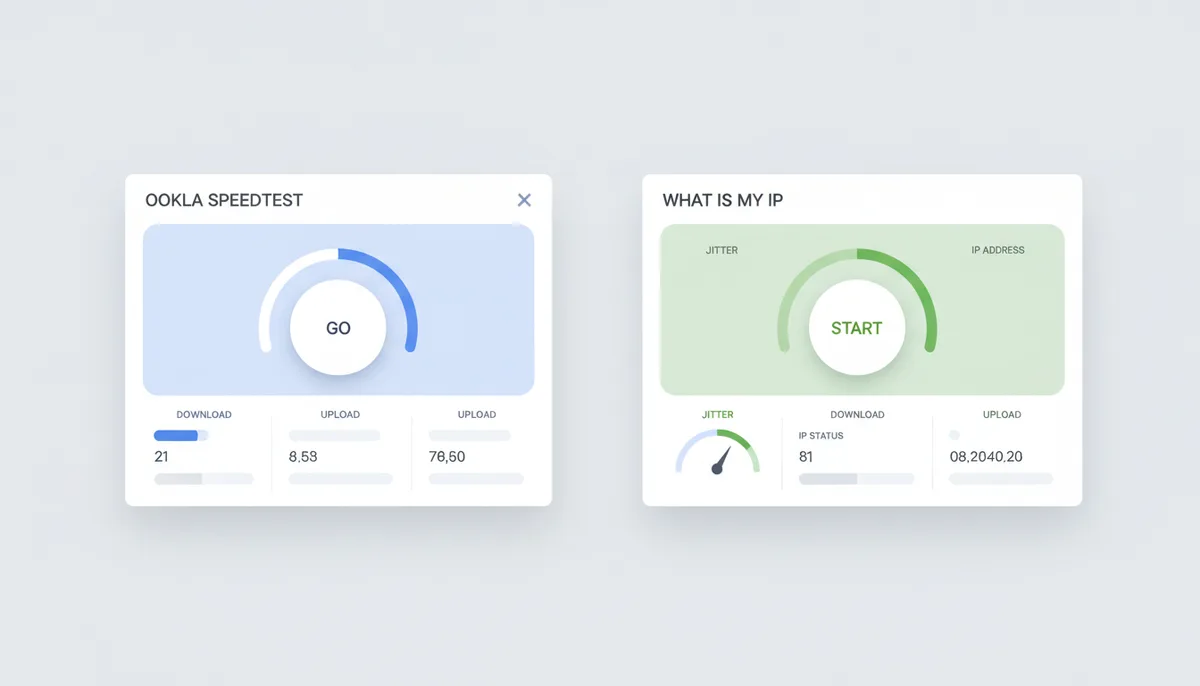
Ookla is the specialist. It measures the maximum throughput of your connection—how much data you can shove through in a second. It’s the tool you use when you want to prove your ISP is delivering what you paid for. The FCC recommends measuring broadband performance when consumers need to verify provider performance.
WhatIsMyMyIP.com is the diagnostician. It doesn’t just measure speed. It asks: What else is happening right now? Is your IP flagged? Are you behind a VPN you didn’t enable? Is your ISP routing you through a congested backbone? It ties your speed result to your IP’s location, ASN, blacklist status, and proxy detection—all in one screen.
This isn’t about which tool is “better.” It’s about which one answers the question you’re actually asking.
If you’re trying to dispute a bill? Use Ookla.
If you’re trying to figure out why your stream keeps buffering, even though your speed test says you’re fine? Use WhatIsMyMyIP.com.
This guide won’t tell you to pick one over the other. It’ll show you when to use each—and why the second one might save you hours of frustration.
How Do Internet Speed Tests Actually Work?
A speed test doesn’t measure your internet like a water meter measures flow. It simulates it.
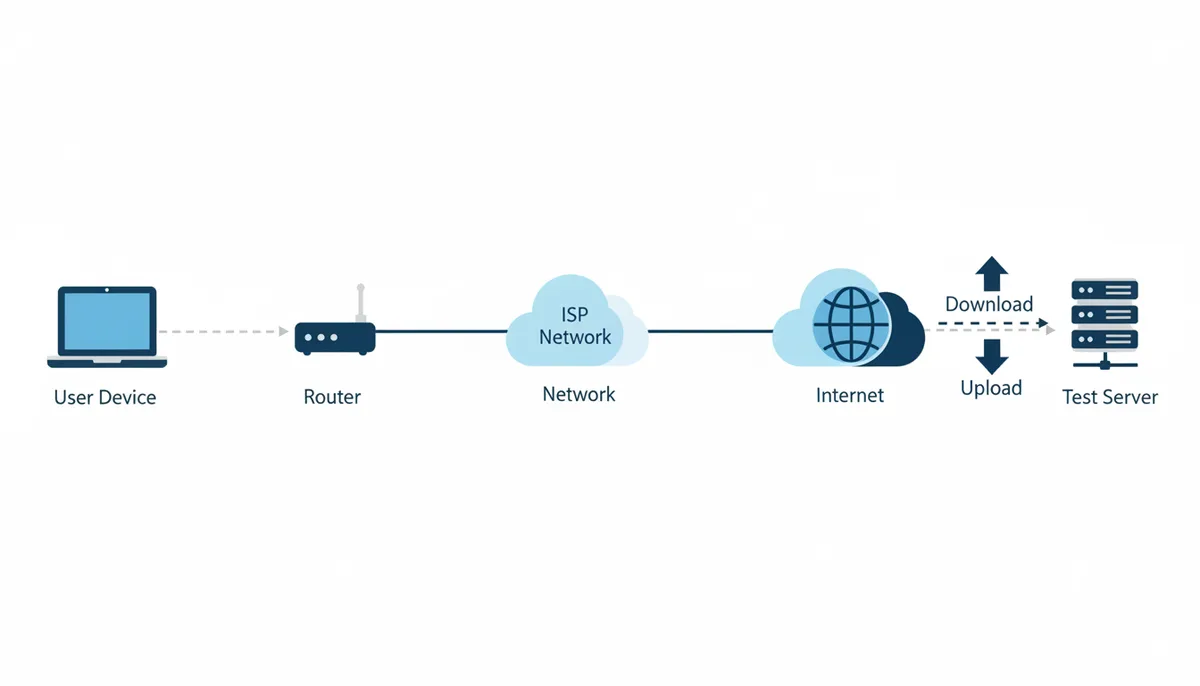
Here’s how it works: your browser or app picks a server somewhere on the internet. It sends a small file—usually a few megabytes—down to your device. It measures how long that took. Then it sends a file back up. It measures that too. Then it sends a series of tiny “ping” packets to measure reaction time. The underlying protocols that govern these packets are defined in IETF RFCs. All of this happens in under 30 seconds.
The result? Three numbers:
- Download Speed: How fast data comes to you. Measured in Mbps. This matters for streaming, downloading files, loading web pages.
- Upload Speed: How fast data leaves you. Also in Mbps. This matters for video calls, cloud backups, live streaming, gaming where you send your actions to the server.
- Ping (Latency): The time it takes for a packet to travel to the server and back. Measured in milliseconds (ms). Lower is better. For gaming, anything over 100ms feels sluggish.
- Jitter: The variation in ping times. If your ping is 25ms one second and 180ms the next, that’s high jitter. It’s what makes video calls choppy or shooters feel unpredictable, even if your average ping is low.
But here’s the catch: the result you get depends entirely on which server you test against.
If you test against a server in Berlin while you’re in Warsaw, your latency will be higher than if you test against one in Kraków. If the server is overloaded—say, 10,000 people are testing at the same time—it’ll throttle your results. If your traffic gets routed through a congested peering point, your speed drops, even if your ISP is fine.
That’s why a good speed test doesn’t just give you a number. It tells you which server you tested against, and sometimes why that server might be giving you skewed results.
And that’s where WhatIsMyMyIP.com starts to pull ahead.
Most tools just show you the speed. WhatIsMyMyIP.com shows you the server’s location, its ISP, its ASN, and whether that server is even trustworthy—because some are intentionally slow, or run by third parties trying to manipulate results.
That’s not a feature. It’s a necessity.
Speedtest by Ookla: The Industry Benchmark for Bandwidth
Ookla’s Speedtest has been the default for over a decade. It’s on the homepage of major ISPs. It’s referenced in customer service scripts. It’s the gold standard.
And for good reason.
Ookla uses multi-threaded testing. That means it opens multiple connections to the server at once—sometimes 8, 12, or more. It saturates your connection. It pushes your bandwidth to its theoretical limit.
Why does that matter?
Because modern internet plans are fast. A 500 Mbps connection can’t be accurately measured with a single download stream. Your browser might only use 50 Mbps at a time. But your ISP doesn’t care about what your browser uses. They care about what your line can handle. Multi-threading reveals that ceiling.
It’s why Ookla’s results are trusted by ISPs and regulators. If you call your provider and say, “My 1 Gbps plan isn’t delivering,” they’ll ask you to run an Ookla test. Not because it’s perfect—but because it’s consistent. Everyone uses it. Everyone knows what the number means.
But here’s what Ookla doesn’t do:
- It doesn’t tell you if your IP is blacklisted.
- It doesn’t detect if you’re behind a proxy or VPN you didn’t enable.
- It doesn’t show you your ASN or ISP organization name.
- It doesn’t check if your DNS is misconfigured.
- It doesn’t tell you whether the server you tested against is local or routed through a third country.
It gives you a number. And a graph. And a history.
That’s great if you’re trying to prove your ISP is lying.
It’s useless if you’re trying to figure out why your Discord call keeps dropping, or why you can’t connect to a gaming server that everyone else can.
Ookla tells you the size of your pipe. It doesn’t tell you if there’s a kink in it. Or if someone else is using it.
And that’s the trade-off: precision in measurement, but no context.
WhatIsMyMyIP.com: A Diagnostic Approach to Connection Health
WhatIsMyMyIP.com doesn’t pretend to be the fastest speed test in the world. It doesn’t try to beat Ookla on bandwidth numbers. It doesn’t need to.
It does something else: it connects the dots.
When you run the speed test on WhatIsMyMyIP.com, you don’t just get a download number. You get this:
- Your public IP address: 57.128.195.96
- Your location: Warsaw, Poland
- Your ISP: OVH SAS
- Your ASN: AS16276
- Proxy detection: Not detected
- VPN detection: Not detected
- Blacklist status: Clean
- Speed test result: 92 Mbps down, 15 Mbps up, 18ms ping, 3ms jitter
All on one screen. No clicking. No toggling tabs.
Now imagine this: your speed test says 12 Mbps down. You panic. You call your ISP. They say, “That’s normal for your plan.” But you’re on a 300 Mbps plan.
You check WhatIsMyMyIP.com again. Same result. But now you see: VPN Detected: Yes.
That’s your problem. Not your ISP. Not your router. You enabled a free VPN extension on Chrome last week. It’s routing all your traffic through a server in Romania. That’s why your speed is slow. That’s why your ping is high.
Ookla would show you 12 Mbps and leave you guessing.
WhatIsMyMyIP.com shows you 12 Mbps—and tells you why.
This isn’t marketing. This is diagnostics. It’s the difference between a mechanic saying “your engine is underperforming” and saying “your air filter is clogged, your fuel pump is failing, and your ECU is misreading the oxygen sensor.”
And it’s not just for speed. The same page gives you:
- A WHOIS lookup for your IP—so you can see who owns it, when it was registered, and how to report abuse.
- A DNS resolver test—to check if your DNS is slow or redirecting you.
- A blacklist check—to see if your IP is flagged by spam databases like Spamhaus or Barracuda, which can block you from sending emails or accessing some websites.
- A proxy detection—to catch sneaky corporate proxies or malicious extensions.
These aren’t “bonus features.” They’re the reason your connection is broken.
Most people don’t know their IP address changes every time they reboot their router. Or that their ISP assigns them a shared IP used by hundreds of others. Or that one of those others sent spam, and now your IP is blocked by Twitch.
WhatIsMyMyIP.com doesn’t just test your speed. It tells you who you are on the internet—and whether that identity is working for you.
Head-to-Head Comparison: Features, Data, and Use Cases
Here’s the real difference—not in speed, but in what you learn.
| Feature | Speedtest by Ookla | WhatIsMyMyIP.com |
|---|---|---|
| Primary Goal | Measure maximum bandwidth capacity | Diagnose real-world connection health |
| Testing Methodology | Multi-threaded (opens multiple simultaneous connections to saturate the line) | Single-threaded (simulates typical single-stream application usage) |
| Key Metrics | Download, Upload, Ping, Jitter, Historical Graphs | Download, Upload, Ping, Jitter, IP Location, ISP, ASN, Proxy/VPN Detection, Blacklist Status |
| Server Network | Extensive global server network optimized for low latency and capacity testing | Multiple regional and ISP-cloud endpoints chosen for diagnostic value |
| Integrated Diagnostics | None (focuses on bandwidth measurement) | IP lookup, WHOIS, DNS resolver, blacklist check, proxy/VPN detection, breach check |
| Data Privacy | Does not store personal data; anonymizes test results | No account required for basic use; data stored only with premium or explicit opt-in |
| Advanced Features | Mobile apps, API access, enterprise reporting, video quality rating | Network diagnostics dashboard, IP history, bulk lookup tools, exportable results |
Let’s break down the most important row: Testing Methodology.
Ookla’s multi-threaded test opens multiple connections to saturate your bandwidth and find its theoretical limit. It’s the standard for proving you’re getting what your ISP promises; see guidance on measuring broadband performance from the FCC. WhatIsMyMyIP.com’s single-threaded test mirrors typical single-stream behaviors, giving you a realistic sense of how a single app or connection performs under normal conditions.
That’s not about being “more accurate”—it’s about being more relevant. If you’re troubleshooting why your video call stutters, you care about how a single stream behaves, not how many streams your line can handle.
The server selection matters too. Ookla’s network is vast and optimized for low latency and high-capacity benchmarking; WhatIsMyMyIP.com uses a smaller, more varied set of endpoints that include regional ISP and cloud provider servers. That selection can reveal routing quirks—like being routed through a congested backbone or a distant peering point—that optimized benchmark nodes might hide. Measurement platforms and research projects explain why server choice and test configuration affect results; see M‑Lab’s guidance on measurement principles.
And then there’s the context. Ookla gives you speed. WhatIsMyMyIP.com gives you speed plus your public IP, your ISP name, your ASN, whether you’re behind a proxy or VPN, and if your IP is listed on any public blacklists. That’s a diagnostic layer combining network identity and routing context with performance metrics. No other widely used consumer speed test combines all of these elements together on a single result page.
WhatIsMyMyIP.com isn’t trying to be the fastest test. It’s trying to answer the question: Why is my internet acting up? And for that, the extra context matters more than the extra Mbps.
When Speed Test Results Don't Match Reality: Common Pitfalls
You ran the test. 150 Mbps down. Your plan is 200 Mbps. You’re 25 Mbps short. You’re angry. You call your ISP.
They say: “That’s normal. You’re on Wi-Fi.”
You switch to Ethernet. Same result.
You reboot your router. Still 150.
You test at 2 a.m. Still 150.
You test with Ookla. 198 Mbps.
What’s going on?
Here’s the truth: speed tests are fragile. They’re affected by everything from your browser to your neighbor’s smart fridge.
Here’s what actually causes speed tests to lie:
- Wi-Fi interference: Microwaves, baby monitors, Bluetooth devices, even LED lights can disrupt 2.4 GHz signals. Even on 5 GHz, walls and distance matter. A 300 Mbps plan can drop to 80 Mbps if you’re two rooms away with a concrete wall in between.
- Outdated hardware: Routers older than 2018 often don’t support modern Wi-Fi standards. Even if your ISP gives you 1 Gbps, your router might cap you at 300 Mbps.
- Background apps: Windows updates, cloud backups, torrent clients, even browser tabs auto-playing videos can eat bandwidth during your test.
- ISP throttling: Some providers slow down traffic to certain services (like Netflix or BitTorrent) during peak hours. A speed test to a random server won’t catch that.
- Browser extensions: Ad blockers, privacy tools, or VPN extensions can interfere with the test or reroute your traffic.
So how do you test correctly?
Follow this checklist:
- Use a wired Ethernet connection. No exceptions.
- Reboot your router and modem. Wait 2 minutes.
- Close all apps: Discord, Steam, Dropbox, Chrome tabs, Netflix.
- Turn off Wi-Fi on your device to ensure you’re not accidentally using it.
- Test at three different times: morning, afternoon, and late night.
- Test with both Ookla and WhatIsMyMyIP.com.
- Check your IP details on WhatIsMyMyIP.com. Is your ISP listed? Is your location correct? Is there a proxy or VPN detected?
If Ookla says 198 Mbps and WhatIsMyMyIP.com says 150 Mbps, and you’re on Ethernet, and your IP shows you’re connected to OVH SAS (your ISP), and no proxy is detected—then the difference could be due to server selection, routing, or test methodology. It doesn’t automatically mean your ISP is throttling. It means you need to test again, with the same device, same cable, same browser, against the same servers, at the same time of day. Only if the pattern repeats consistently across multiple tests should you consider ISP throttling as a likely cause—and even then, it’s one of several possibilities.
That’s the power of using both tools together.
Ookla tells you what your line can do.
WhatIsMyMyIP.com tells you what it’s actually doing.
Advanced Scenarios: Choosing the Right Test for Your Task
For Gamers
You’re in a ranked match. Your ping is 85ms. You’re not winning. You think it’s your headset. Your mouse. Your reflexes.
It’s not.
It’s jitter.
Ping is your average reaction time. Jitter is how much it fluctuates. If your ping is 85ms but your jitter is 60ms, sometimes you’re at 25ms, sometimes you’re at 145ms. That’s what causes rubber-banding. That’s what makes your shots miss.
Ookla shows you ping. It sometimes shows jitter—but only if you dig into the detailed results. And even then, it doesn’t tell you if your IP is blocked by the game server’s anti-cheat system.
WhatIsMyMyIP.com shows you jitter clearly—and tells you if your IP is flagged. If you’re getting kicked from Valorant servers, it might not be your connection. It might be your IP. Someone else on your ISP’s network got banned. Now your shared IP is blacklisted. No speed test will fix that. Only a new IP will.
Run a test on WhatIsMyMyIP.com. If your IP is clean, and your jitter is under 15ms, your problem is your router or game settings. If your IP is flagged, contact your ISP. They can assign you a new one.
For Remote Workers
You’re on a Zoom call. Your video freezes. Your audio cuts out. Your colleagues say, “You’re buffering.”
You run a speed test. 100 Mbps down. 20 Mbps up. That’s more than enough.
But Zoom doesn’t need 20 Mbps upload. It needs 1.5 Mbps. Stable. Consistent.
Upload speed isn’t the issue. Stability is.
WhatIsMyMyIP.com shows you jitter. If it’s above 20ms, your call will drop. It also shows you if you’re behind a corporate proxy. Many companies force all traffic through a central server. That adds latency. That adds jitter. That breaks Zoom.
Check the proxy detection. If it says “Yes,” your company’s network is the bottleneck—not your ISP. You can’t fix that by upgrading your plan. You need to use a different connection or ask IT to adjust the policy.
And if you’re using a VPN for work? WhatIsMyMyIP.com will tell you. It’ll show you the server location. It’ll show you the ISP. You’ll see if your corporate VPN is routing you through London when you’re in Berlin. That’s 100ms of extra latency. Right there.
For Streamers & Content Creators
You’re streaming to Twitch. Your bitrate is set to 6000 kbps. Your viewers say your stream is “chunky.” You’ve upgraded your plan. You’ve bought a new encoder. You’ve checked your settings.
Still chunky.
Here’s the secret: your upload speed isn’t the problem. Your ISP’s peering is.
Twitch has servers in Frankfurt, Amsterdam, and Chicago. If your ISP (say, OVH SAS) doesn’t have a direct connection to Twitch’s network, your traffic gets routed through a third party—maybe a slower backbone, maybe one that’s congested.
WhatIsMyMyIP.com shows you your ASN: AS16276. That’s OVH. Now look up OVH’s peering relationships. You’ll find they have direct connections to Twitch in Europe. So why are you having issues?
Because your local node might be routed through a different ASN. Maybe your ISP uses a regional reseller. Maybe your IP was assigned from a different pool.
Check your IP’s geolocation. Is it in Warsaw? Good. But is your traffic being routed through Paris? That’s 100ms extra. That’s buffering.
Use WhatIsMyMyIP.com’s WHOIS lookup. Find your ASN. Then check if it has direct peering with the platform you’re streaming to. If not, ask your ISP to fix it. Or switch providers.
Upload speed is a number. Peering is the reason that number doesn’t matter.
Our Recommendation: Which Speed Test Should You Use?
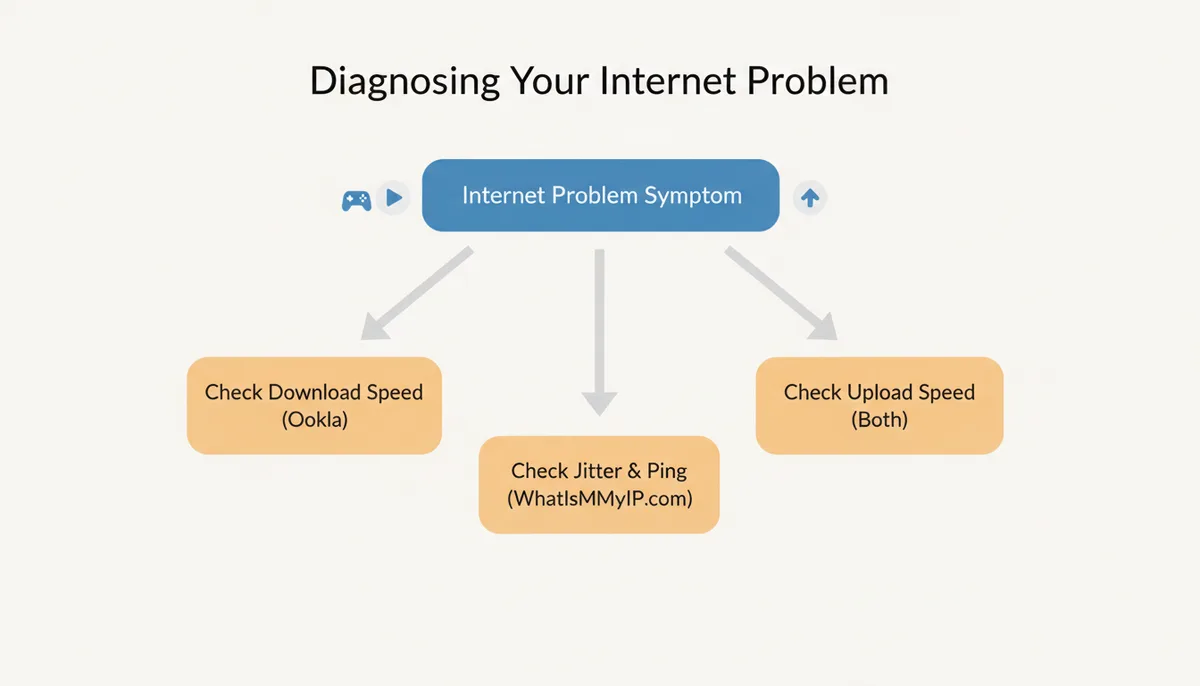
You don’t need to choose one. You need to use both—correctly.
Here’s when to use each.
| Use Speedtest by Ookla if you need to... | Use WhatIsMyMyIP.com if you need to... |
|---|---|
| Verify your ISP is delivering the speed you pay for | Diagnose why your connection feels slow despite a good speed number |
| Compare your connection to a universally accepted benchmark | Check if your IP address is blacklisted, proxied, or flagged |
| Measure the maximum bandwidth your line can handle | Understand your network context: ISP, ASN, location, and routing |
Power users do this:
- Run Ookla once a month to confirm your ISP is honoring your plan.
- Run WhatIsMyMyIP.com every time you notice a problem—buffering, lag, blocked sites, slow uploads.
- If the speed is low on WhatIsMyMyIP.com but fine on Ookla, check for proxies or VPNs.
- If the speed is low on both, and your IP is clean, contact your ISP with both results.
- If your IP is flagged, request a new one from your ISP. Most will do it for free.
There’s no magic tool. But there is a smarter way.
Ookla gives you the number. WhatIsMyMyIP.com gives you the story.
And if you’re trying to fix your internet, the story matters more than the number.
What Happens When Your ISP Uses Carrier-Grade NAT — And Why No Speed Test Can Fix It
You’re on a 500 Mbps plan. Ookla says 492 Mbps down. WhatIsMyMyIP.com says 488 Mbps down. Your ping is 15ms. Jitter is 2ms. Your IP is clean. Your ISP is OVH SAS. Everything looks perfect.
But you can’t host a game server. You can’t use port forwarding. Your smart home camera won’t connect remotely. Your torrent client says “port closed.” Your video doorbell keeps going offline.
You call your ISP. They say, “Your connection is working as intended.”
They’re not lying. They’re just not telling you the whole truth.
You’re on Carrier-Grade NAT (CGNAT).
Most home users don’t know what CGNAT is. Most speed tests don’t detect it. And most ISPs won’t tell you unless you ask—because if you knew, you’d demand a public IP.
Here’s how it works: your ISP doesn’t have enough public IPv4 addresses to give one to every customer. So instead of assigning each household its own unique IP (like 57.128.195.96), they assign you a private IP—something like 10.100.5.23—and then route all your traffic through a shared gateway. That gateway has one public IP, shared by hundreds, sometimes thousands, of users.
That’s CGNAT. And it breaks anything that requires inbound connections.
Speed tests don’t care. They only make outbound requests. They download data. They upload data. They ping a server. They never wait for someone to connect to you. So your download speed looks fine. Your upload speed looks fine. Your ping looks fine. But your home network is effectively invisible to the outside internet.
WhatIsMyMyIP.com doesn’t label your connection as “CGNAT.” But it shows you your public IP. To check if you’re on CGNAT, compare that IP to the one shown on your router’s WAN status page. If they’re different, you’re behind CGNAT. Or if your public IP falls in one of these ranges—10.0.0.0/8, 172.16.0.0/12, 192.168.0.0/16, or 100.64.0.0/10—you’re definitely on CGNAT. These are reserved for private or carrier-grade networks and should never appear as your public-facing address.
Here’s what it breaks:
- Game servers: You can’t host Minecraft, Valheim, or Arma 3. Others can’t connect to you.
- Remote access: No RDP, no VNC, no SSH from outside your home.
- Security cameras: Most require port forwarding to stream remotely. CGNAT blocks it.
- P2P and torrents: You’ll get low seed ratios. Connections fail. Speeds stall.
- Home automation: Devices like Nest, Ring, or Home Assistant can’t receive commands from outside your network.
Speed tests won’t tell you this. Neither will Ookla. Neither will Fast.com. They’re designed for outbound traffic. CGNAT is an inbound problem.
WhatIsMyMyIP.com is one of the few free tools that can help you spot it—because it shows you your real public IP. But even then, it doesn’t explain what to do next.
So what do you do?
First: confirm it. Check your router’s WAN IP. Compare it to the public IP shown by WhatIsMyMyIP.com. If they differ, or if the IP falls in a private range, you’re on CGNAT.
Second: ask for a public IP. Many ISPs will give you one for free if you ask. Just say: “I need a static public IP for remote access and hosting.” Don’t say “I need to run a game server.” Say “remote access.” It sounds more legitimate. Most residential plans allow it—just not by default.
If they refuse? You have three options:
- Switch to an ISP that doesn’t use CGNAT. Some do—especially in Europe and parts of North America. Look for providers that advertise “public IP” or “static IP” on residential plans.
- Use a tunneling service like Tailscale or Cloudflare WARP. These create encrypted virtual networks that bypass CGNAT. They don’t give you a public IP, but they let you connect to your devices remotely. Tailscale is free for personal use.
- Use a VPS as a relay. Rent a $5/month cloud server (like from Hetzner or Linode), install a reverse proxy or SSH tunnel, and route your traffic through it. It’s technical, but it works.
This isn’t a bandwidth problem. It’s a routing problem. And no speed test can fix it.
But if you know what to look for—what your IP says, what your ISP hides, and what the tools can reveal—you can fix it without paying for a business plan.
CGNAT is the silent killer of home networking. It doesn’t slow you down. It just locks you out. And the only way to get back in is to know you’re locked out in the first place.
FAQ
Why are my Wi-Fi speed test results so much lower than wired?
Wi-Fi is a shared radio channel. Every device on your network—phones, laptops, smart bulbs, baby monitors—uses the same airwaves. Interference from microwaves, walls, or even neighboring networks cuts your speed. Distance matters too: at 20 feet through two drywall walls, your 500 Mbps plan might drop to 120 Mbps. Wired Ethernet is a direct, shielded cable. No competition. No interference. No guesswork. That’s why wired results are always higher—and more reliable.
Is Fast.com by Netflix a good alternative?
Fast.com is excellent for one thing: testing how fast you can stream from Netflix. It’s simple, fast, and tells you if your connection is good enough for 4K. But it doesn’t test upload speed. It doesn’t show ping or jitter. It doesn’t check your IP or detect proxies. It’s a narrow tool for a narrow problem. For general diagnostics, it’s not enough. Use it to confirm streaming issues, but not to troubleshoot your whole connection.
Can a speed test slow down my internet?
No. It uses your bandwidth for 10 to 30 seconds while it runs, but it doesn’t change anything on your network. It doesn’t install software. It doesn’t alter settings. It doesn’t affect your router. Once it’s done, your connection returns to normal. The only slowdown is temporary—and it’s necessary to measure your true speed.
What is considered a 'good' ping or latency?
Under 20ms is excellent for competitive gaming. Under 40ms is great for most online games. For video calls, under 60ms is smooth. Anything under 100ms is acceptable for browsing and streaming. Above 150ms, you’ll notice delays. Above 200ms, it becomes frustrating. Jitter matters just as much—if your ping jumps from 30ms to 180ms, your call will glitch even if your average is 75ms.
Do I need to pay for a reliable speed test?
No. Both Speedtest by Ookla and WhatIsMyMyIP.com offer full, accurate tests for free. Paid versions add things like API access, historical data storage, or enterprise reporting—but those are for IT teams, not home users. You don’t need to pay to get accurate numbers. You just need to use the right tool for the problem.
Why do different speed test sites give me different results?
Because they’re testing different things. Ookla uses multiple connections to max out your bandwidth. WhatIsMyMyIP.com uses one to simulate real usage. Fast.com tests only Netflix servers. Google Fiber tests only Google’s network. And if you test against a server in New York while you’re in Los Angeles, your latency will be higher than if you test against one in San Francisco. Server load matters too—if 500 people are testing on the same server, it’ll slow down. For consistent results, stick to one tool and one server location.
Sources
- Speedtest by Ookla — Claims about Ookla's methodology, such as their use of a vast server network and multi-thread testing.
- Internet Engineering Task Force (IETF) — Technical definitions of underlying protocols like TCP, UDP, and ICMP that govern how speed tests and internet traffic function.
- U.S. Federal Communications Commission (FCC) — Information on national broadband standards and the importance of measuring internet performance for consumers.
- Measurement Lab (M-Lab) — Principles of open internet measurement, definitions of core metrics, and explanations of factors that influence test results.